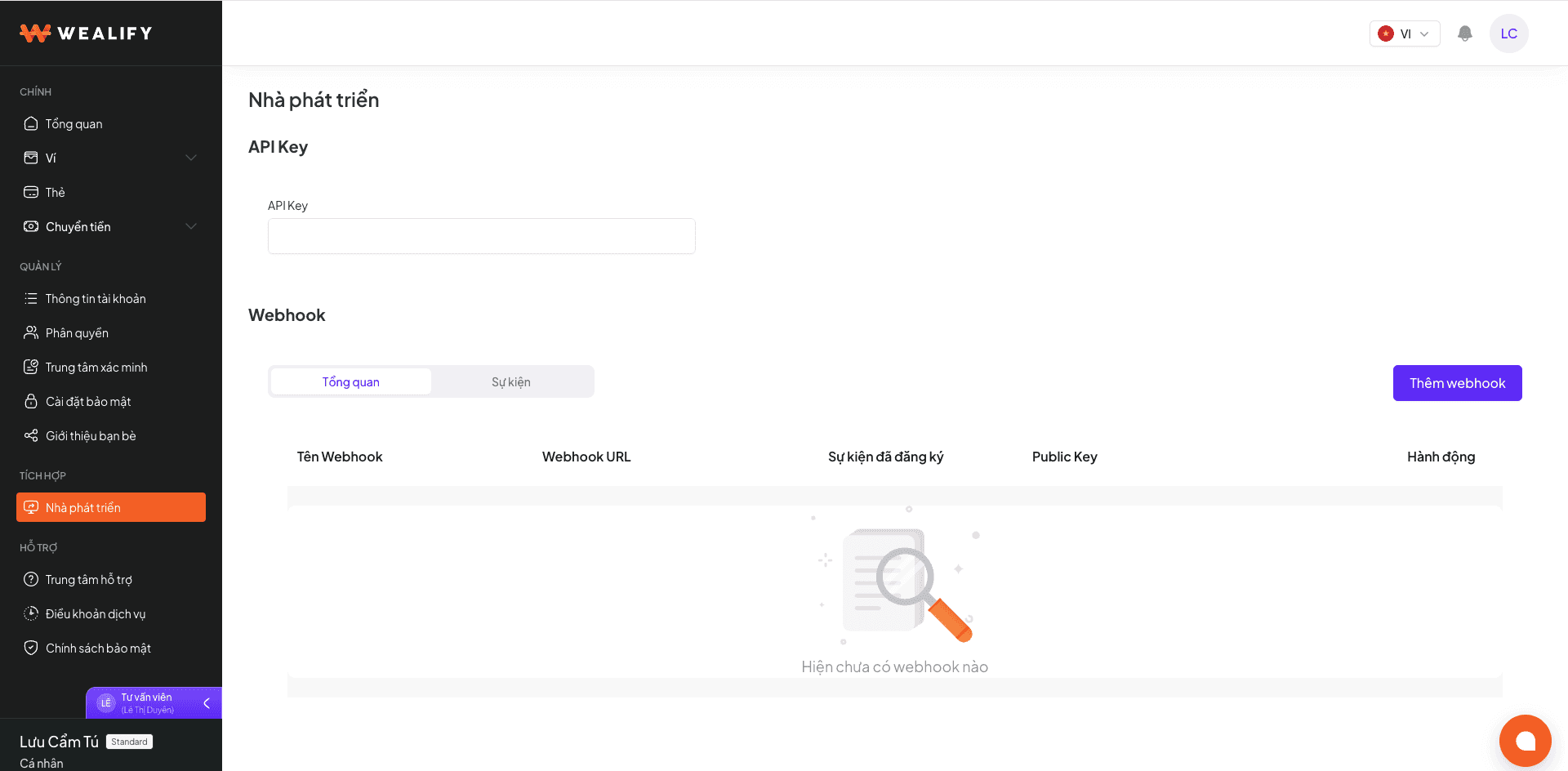
The Permissions menu lets your staff share your Wealify account with limited permissions. Changes take effect immediately when you change a role, unassign or remove a staff member, even if they are logged in.
Permissions for each role:
Feature | Account owner (Director) | Finance | Seller |
|---|
Withdraw from platforms to Global Account | Yes | Yes | No |
Withdraw from Global Account to a bank | Yes | Yes | No |
Manage wallet balance (top up, transfer, view wallet transactions) | Yes | Yes | No |
Create Global Accounts and assign them to members | Yes | Only for assigned Global Accounts | No |
Manage Global Account transactions | Yes | Yes | View assigned Global Accounts only |
Account settings (turn on 2FA, withdrawal accounts, invite and remove members) | Yes | No | No |
Manage permissions | Yes | No | No |
Invite staff:
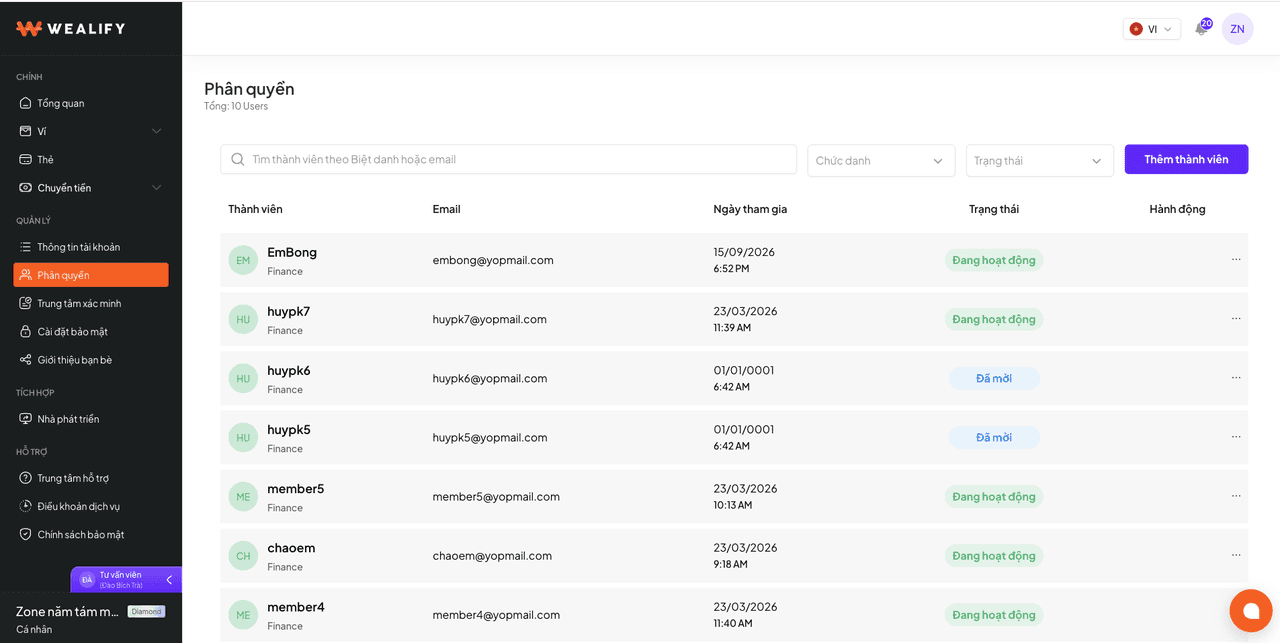
Choose Permissions → Add member. Enter a Nickname (must be unique) and an Email (not already used for another Wealify account), choose the Title Finance or Seller, then send the invitation.
The staff member opens the invitation email, sets a password and activates the account. The invitation link is valid for 24 hours.
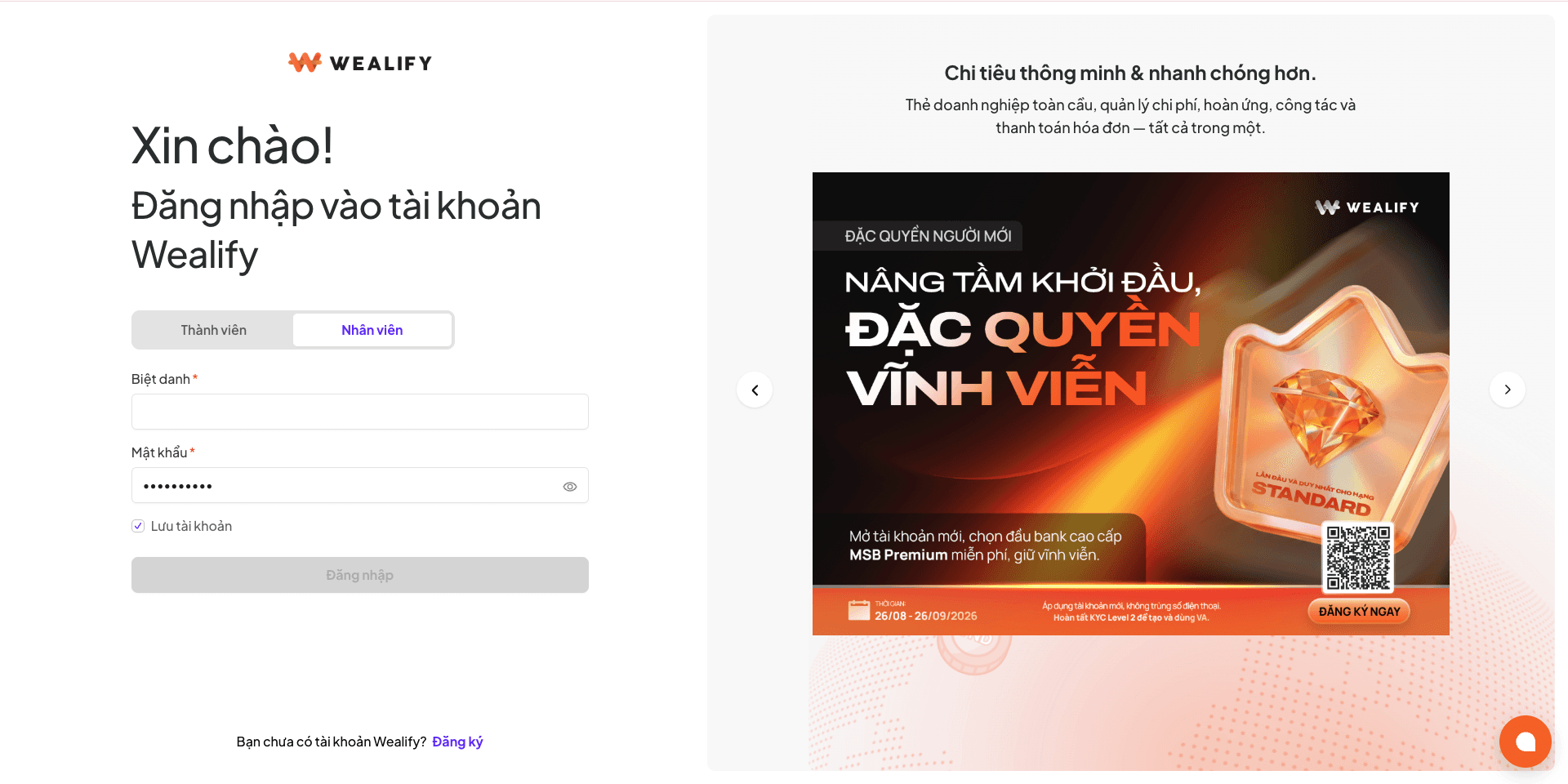
Staff log in with the invited email and their password, on the same login screen as the account owner.
Nickname rules for staff: each member has one nickname, with no spaces or special characters, up to 50 letters and numbers. Staff log in with their email, not their nickname.
You can invite up to 5 members at once by choosing Add member again on the invite screen. Choose – to remove a row you are entering.
Member status | Meaning | Available actions |
|---|
Invited | Invited, not yet activated | Cancel invitation, Resend invitation |
Active | Activated | Edit role, Reset password (link valid for 30 minutes), Remove member |
Expired | The invitation link is more than 24 hours old | Resend invitation |
Assign a Global Account to staff: when creating a Global Account, choose the staff member in the Select staff field. For an existing account, open the account details, under Assignee choose the pen icon → choose an Active member → Assign. To unassign, choose the x next to the staff member's name.