Wallet balances and transactions
The Wallet is where Wealify keeps your money: your VND balance, USD balance and stablecoin wallet (USDT / USDC).
Wallet balance
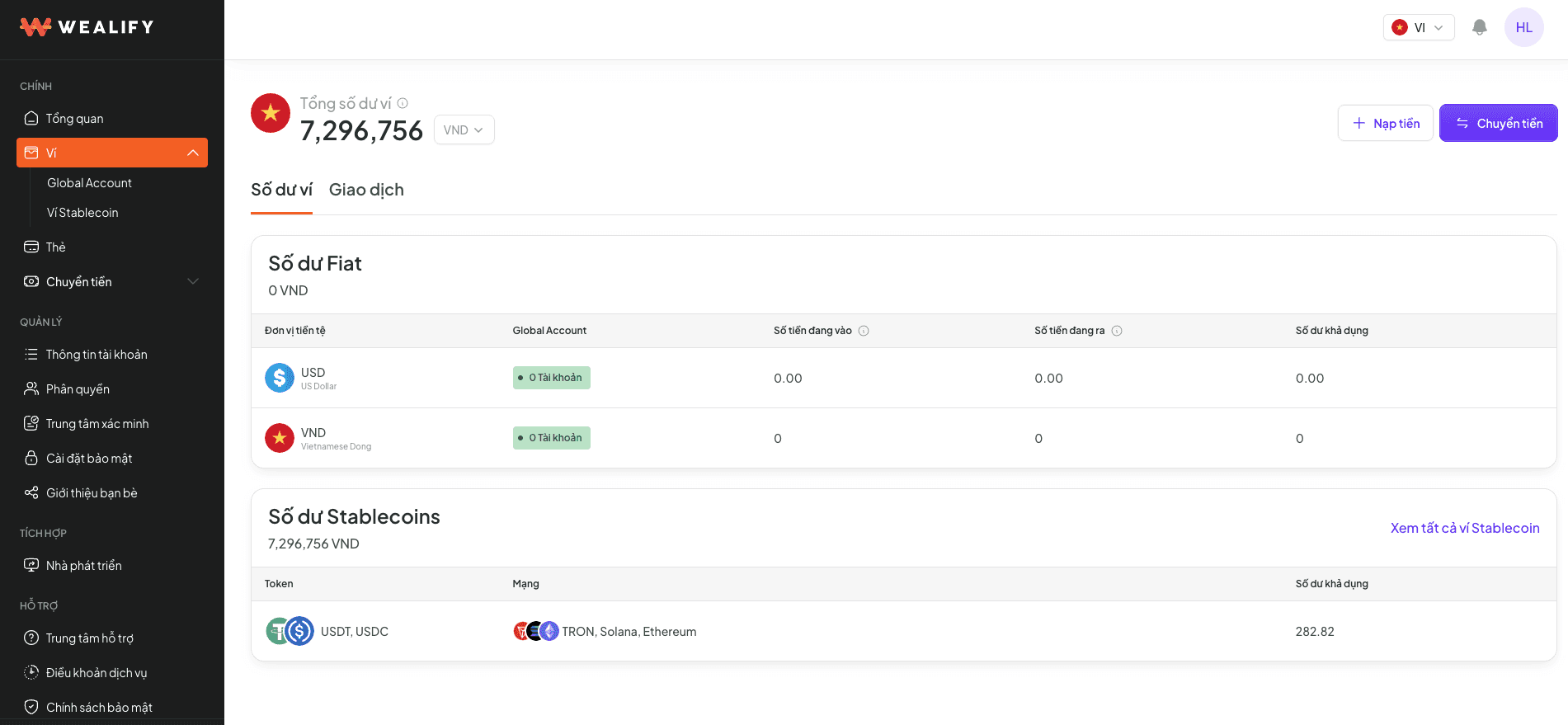
Choose the Wallet menu. The Wallet balance tab shows all your money by currency.
Wallet | Meaning |
|---|---|
Total wallet balance | Total assets converted to VND, with the Top up and Transfer buttons |
VND / USD balance (labeled "Fiat" on screen — meaning regular currency, not stablecoin) | A table by currency, VND and USD: number of Global Accounts, Incoming, Outgoing, Available balance |
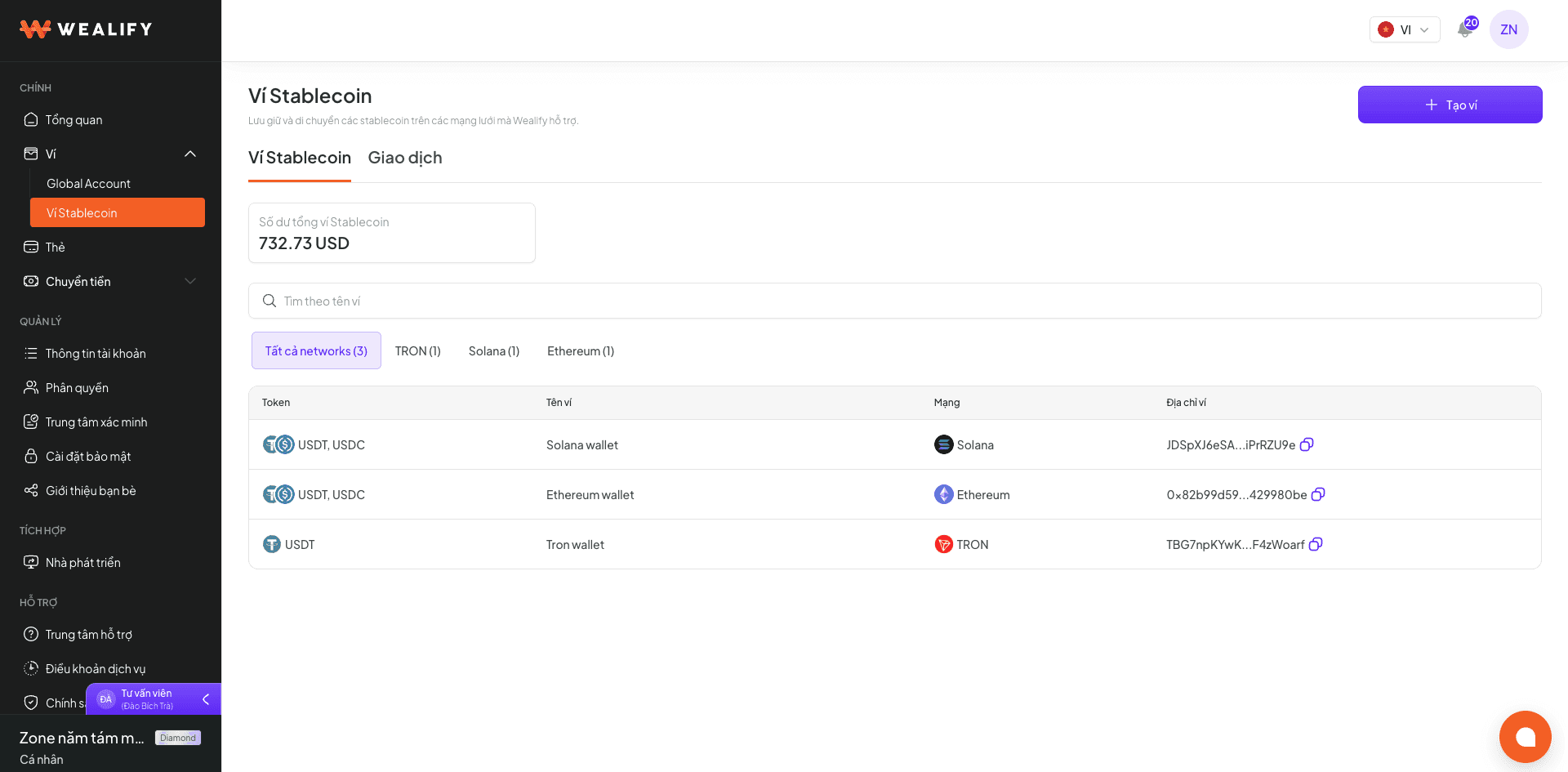
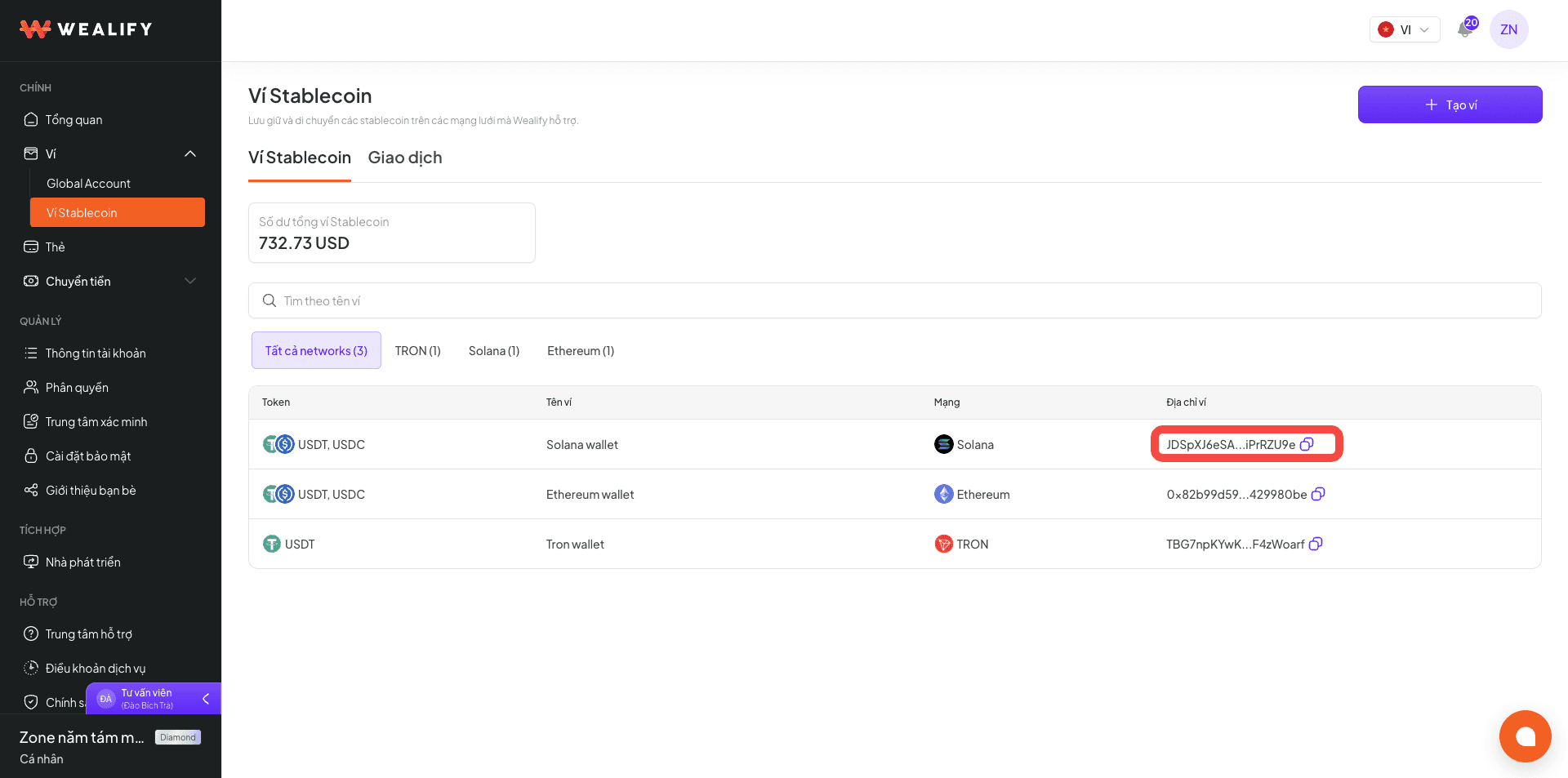
Stablecoin balance | Total USDT / USDC converted to USD, the networks in use and the View all stablecoin wallets link |
Balance type | Meaning |
|---|---|
Incoming | Incoming payments being processed, not yet usable |
Outgoing | Money for transfer orders being processed, already held |
Available balance | The amount you can use right away to transfer or top up a card |
⚠️ NOTE: VND BALANCES CAN'T BE USED TO TOP UP CARDS
Card top-ups and card fees only come from your stablecoin balance. Your VND balance is used to transfer to Vietnamese banks.
Details on adding money to your Wealify wallet
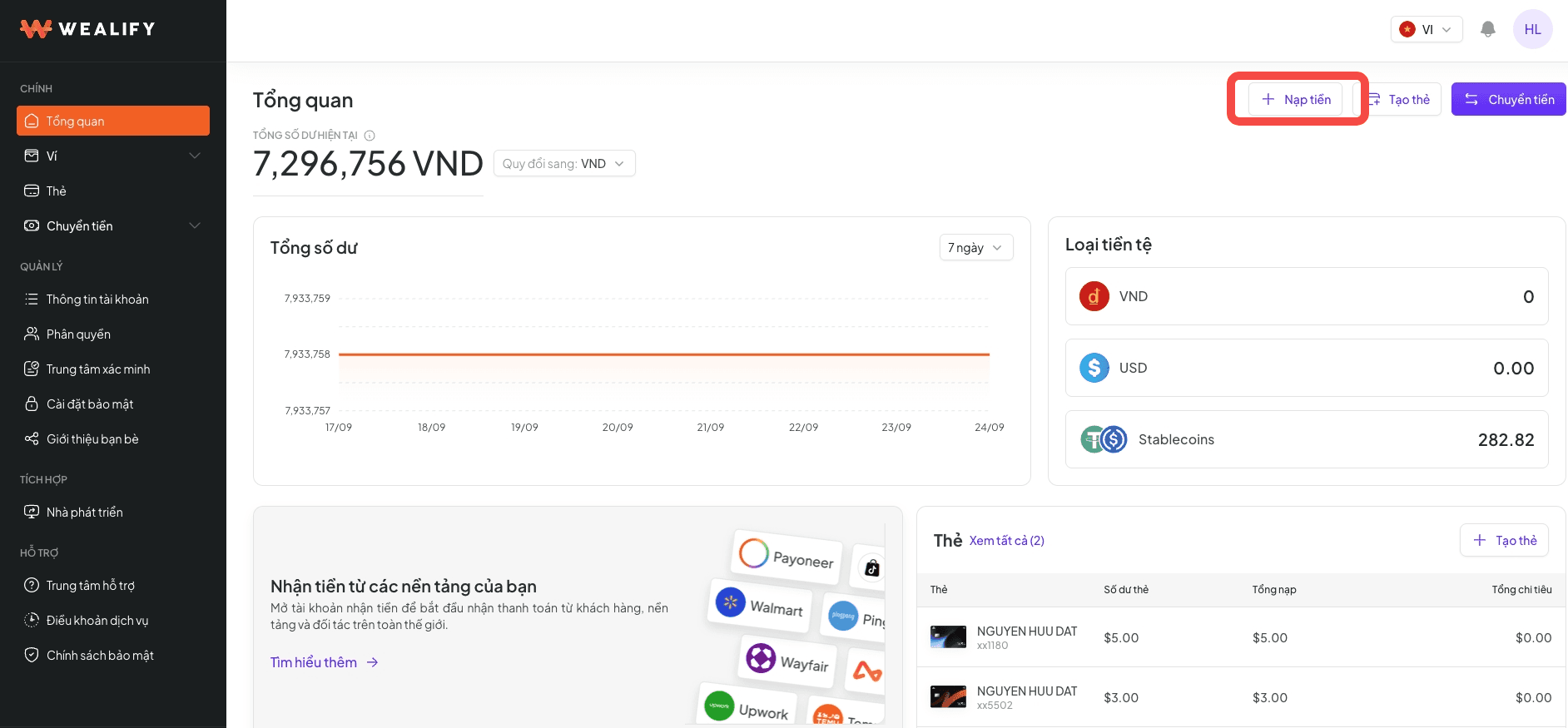
Choose Top up on the Overview or Wallet screen, then choose one of two ways:
Goes into balance | How it works | Fee | What this balance is used for | |
|---|---|---|---|---|
From your Global Account | VND or USD | Money that platforms send to your Global Account is added to the Wallet automatically after confirmation. Choose Go to Global Account list to get the account number to send to the payer. To get your receiving details: for VND, see the article Add your Global Account VND details to the payment section on the platform (section 6.3.2); for USD, see the article Get your receiving details — ACH, Wire or SWIFT (section 7.3.3). | Receiving fees depend on your tier and the source. For the exact fees, see the article Global Account VND fees and limits (section 6.5.1) or Global Account USD fees and limits (section 7.6). | Transfer to a bank, or convert to USDT under the conditions in the article Transfer USDT to the stablecoin wallet (section 7.5.3) |
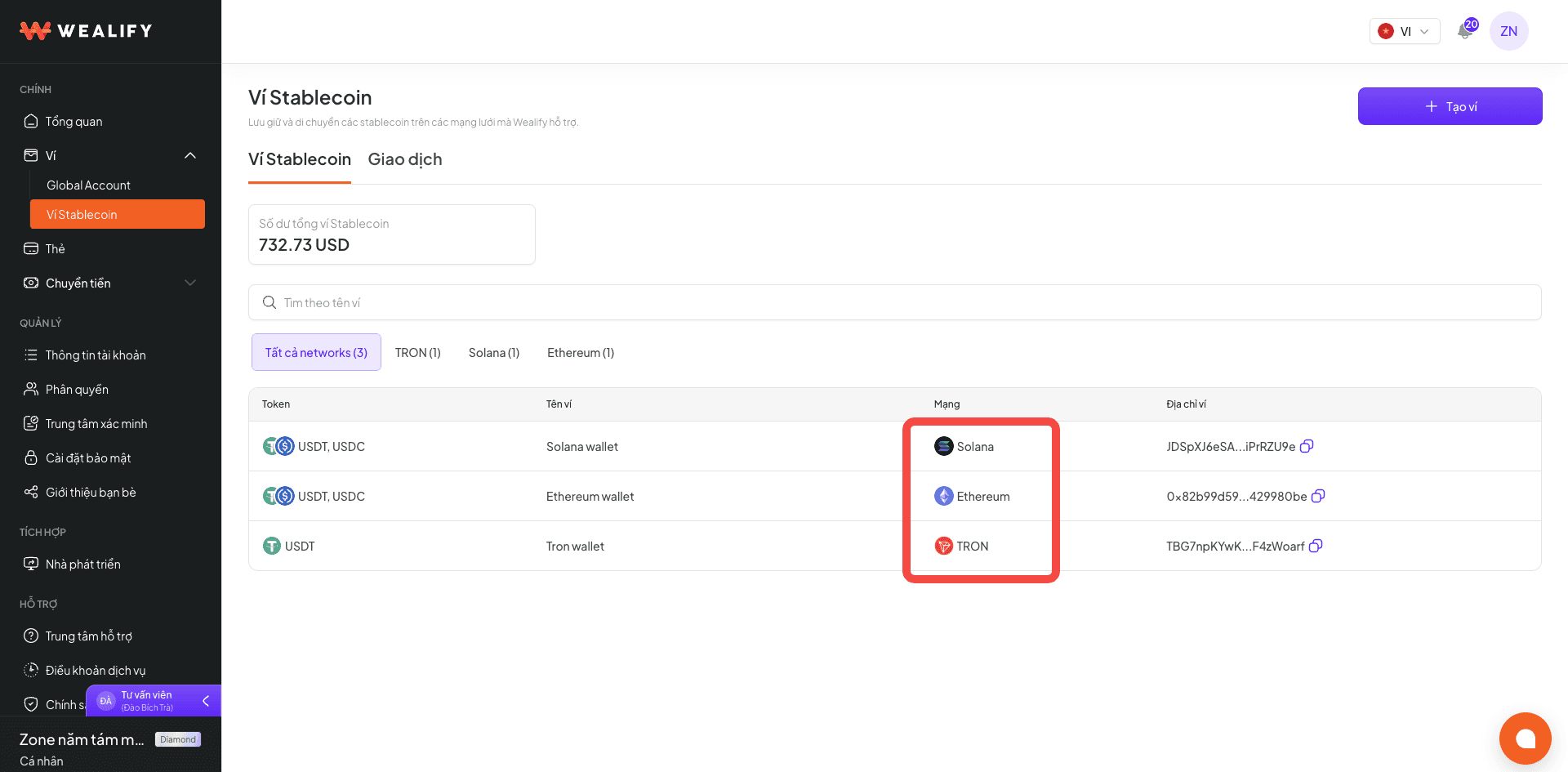
Top up with USDT / USDC | USDT / USDC | Send USDT or USDC from an exchange or an external wallet to your Stablecoin wallet address. The money arrives after the blockchain network confirms it | No top-up fee | Create cards, top up cards, pay the Global Account USD opening fee |
View Wallet transaction history
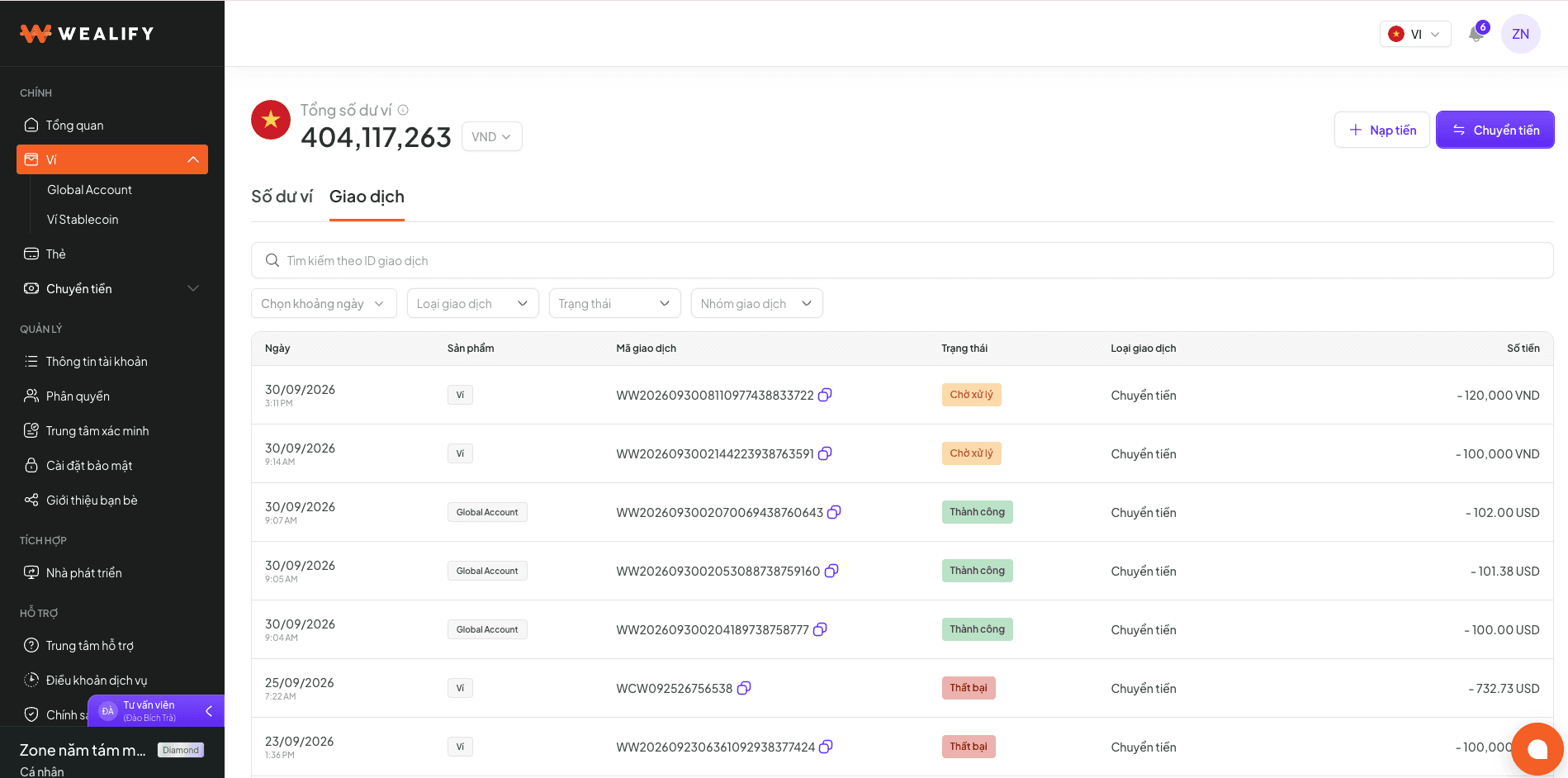
Transaction types: Top up (money into the Wallet) · Transfer (money out) · Refund (money back to the Wallet) · Adjustment (Wealify adjusts the balance, with a note).
Transaction statuses:
Status | Meaning | What you need to do |
|---|---|---|
Pending | The transaction has been recorded but processing hasn't started | No action needed |
Processing | The transaction is being reconciled / confirmed | No action needed |
Awaiting confirmation | Waiting for confirmation from the bank or from you | View the transaction details. If documents are needed, you'll receive an email |
On hold | The transaction is on hold for review | Wait. Wealify will contact you if documents are needed |
Successful | The money has reached the Wallet (incoming) or the recipient (outgoing) | No action needed |
Rejected | The transaction wasn't accepted | See the reason in the details. Please contact Wealify CS if you need help |
Cancelled | The transaction was cancelled | No action needed |
Expired | The transaction wasn't completed in time | Create a new transaction |
View Global Account transactions:
For one account: choose the account in Wallet → Global Account and open the Transactions tab.
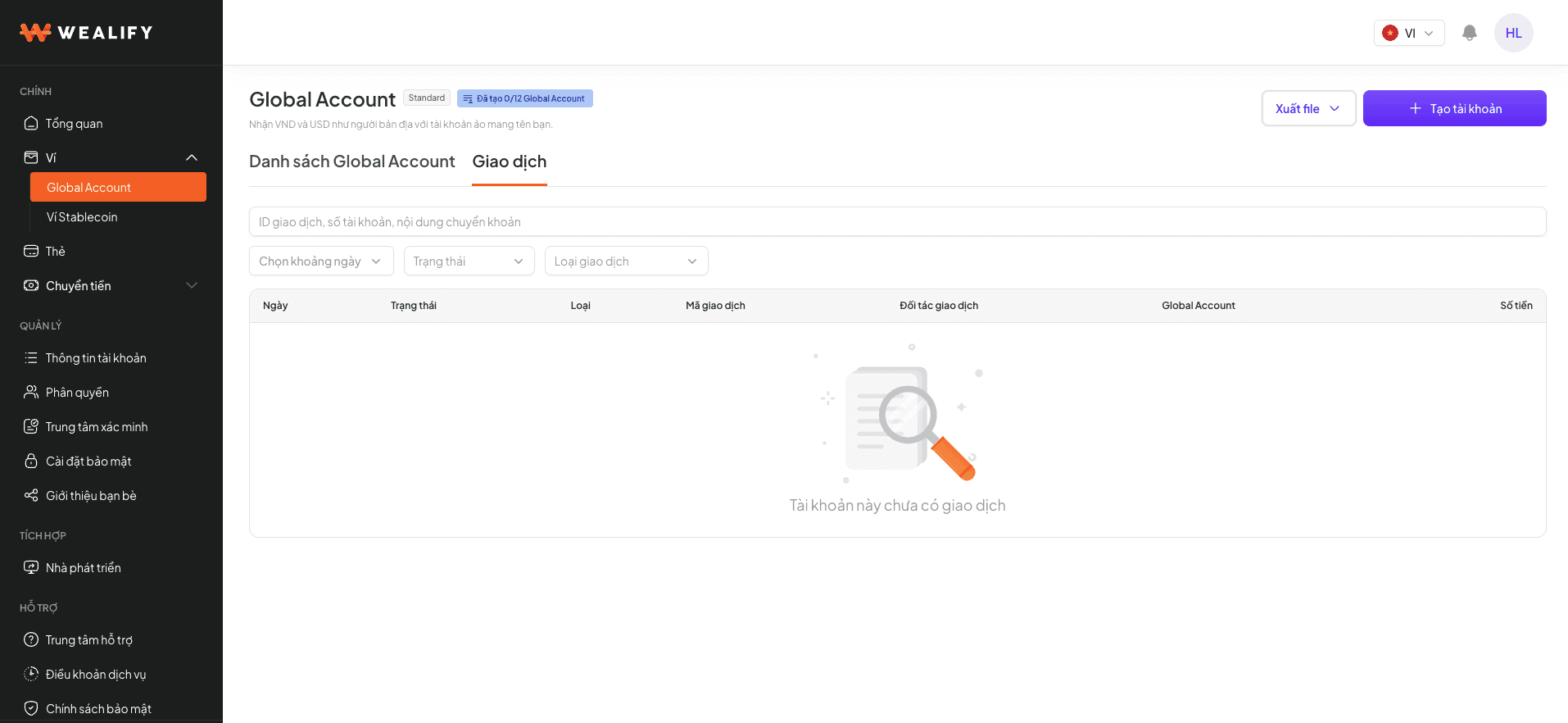
For all Global Accounts: go to Wallet → Global Account and open the All transactions tab. Filters include date range (last 14 days by default), status, transaction type and Global Account. The Counterparty column shows where the money came from, for example "From Etsy".
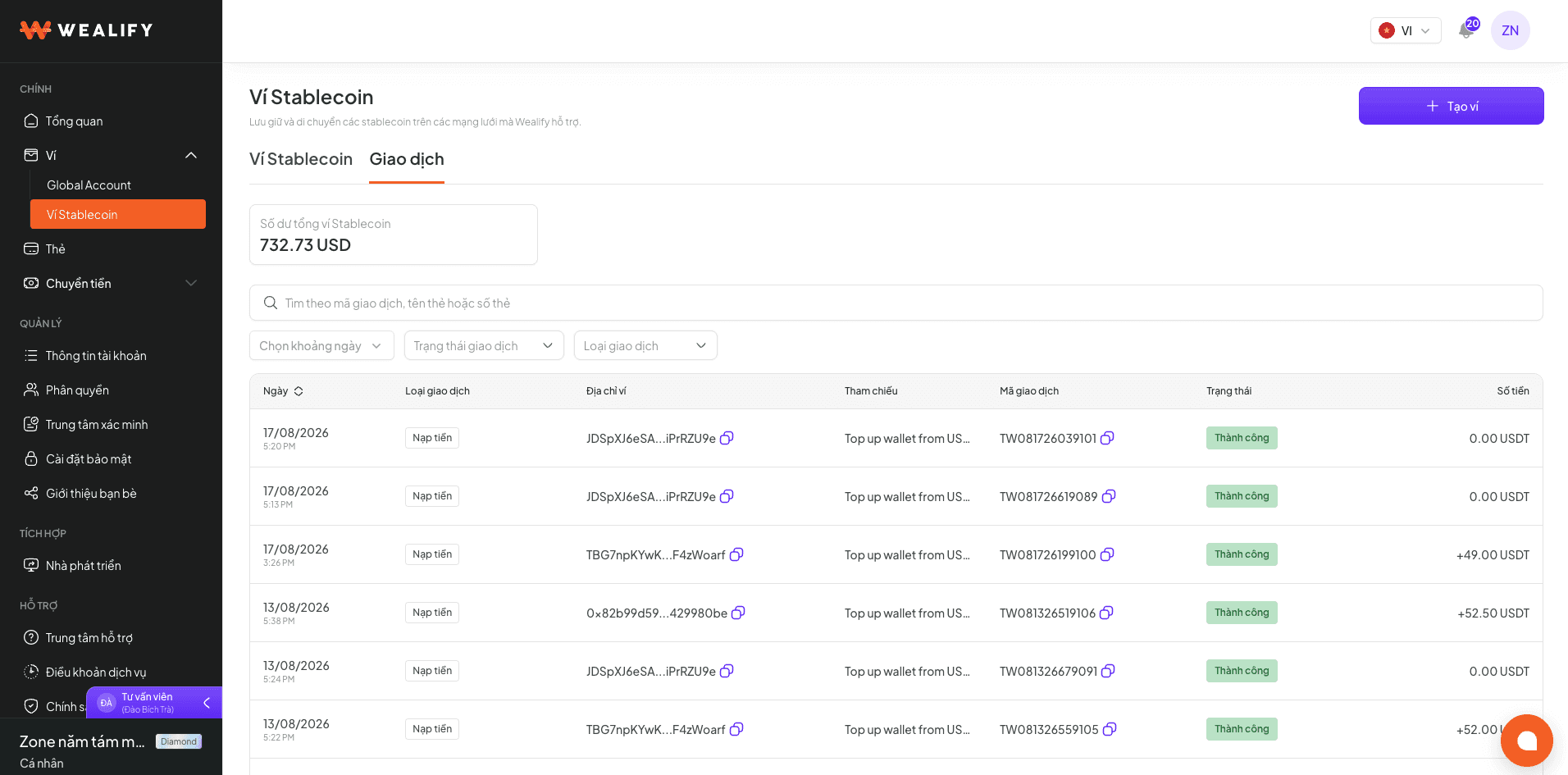
Choose Wallet → Transactions tab to see all money in and out of your Wealify wallet. You can filter by date range, transaction type, status and product (Global Account, Card, Stablecoin wallet).
Choose a transaction to see its details. Each type of fee is shown on its own line, saying clearly what it was charged for.