Global Account USD

About Global Account USD

What Global Account USD is and where it receives money from

Global Account USD is a USD account at a US bank (JP Morgan), in your personal or business name. It receives USD from abroad into Wealify.

Accepted sources of funds: e-commerce marketplaces and payment gateways (Ecom), senders with the same name as the account holder (Same name) and business partners (B2B). Payers send via ACH, Wire or SWIFT.

⚠️ NOTE: THE ACCOUNT OPENING FEE IS CHARGED ONCE WHEN YOU SUBMIT YOUR APPLICATION

80 USD for individuals, 150 USD for businesses. Businesses pay from their stablecoin balance; individuals can pay from their VND balance (converted at the displayed rate) or their stablecoin balance. See the article Global Account USD fees and limits at the end of this chapter.

Global Account USD requirements and documents

Requirements and documents to submit

Global Account USD needs two verification steps:

  1. Your Wealify account is KYC approved (personal) or KYB approved (business) — see chapter 4.

  2. Submit a USD account opening application to the bank. This application is only for Global Account USD and is submitted right in the account creation flow.

📋 The USD account opening application includes:

  • Individuals: the documents listed in the article [Personal] Create a Global Account USD, a live face photo, and proof of address uploaded through the link sent to your email after Compliance approves your application.

  • Businesses: business documents and documents for each director and each owner with 25% or more. Each person verifies their face through a link sent separately to their email after Compliance approves the application — see the article [Business] Create a Global Account USD.

The account opening fee is charged once when you submit the application: 150 USD for businesses, 80 USD for individuals. If the application is permanently rejected, the fee is refunded to the same source it was taken from.

The application is tracked in the Verification Center (application type: USD account opening). The Verifying application status usually lasts 2 to 4 business days.

Create a Global Account USD and get your receiving details

[Personal] Create a Global Account USD

Documents to prepare:

Document

Notes

Individual FATCA form: W-8BEN (non-US person) or W-9 (US person)

A template is available to download right in the upload field. Please fill it in, sign, date it and upload it

Proof of source of funds

One of: bank statements for the last 3 months, an employment contract, payslips. You can upload several files

Occupation

Choose from the list. If none matches exactly, choose the closest one

Proof of address

Submitted through the identity verification link sent to your email after your application is approved (step 4)

Steps:

  1. Choose Wallet → Global Account → Create Global Account and choose the USD type. The country United States and currency USD are pre-selected. Choose the bank, then choose Submit application.
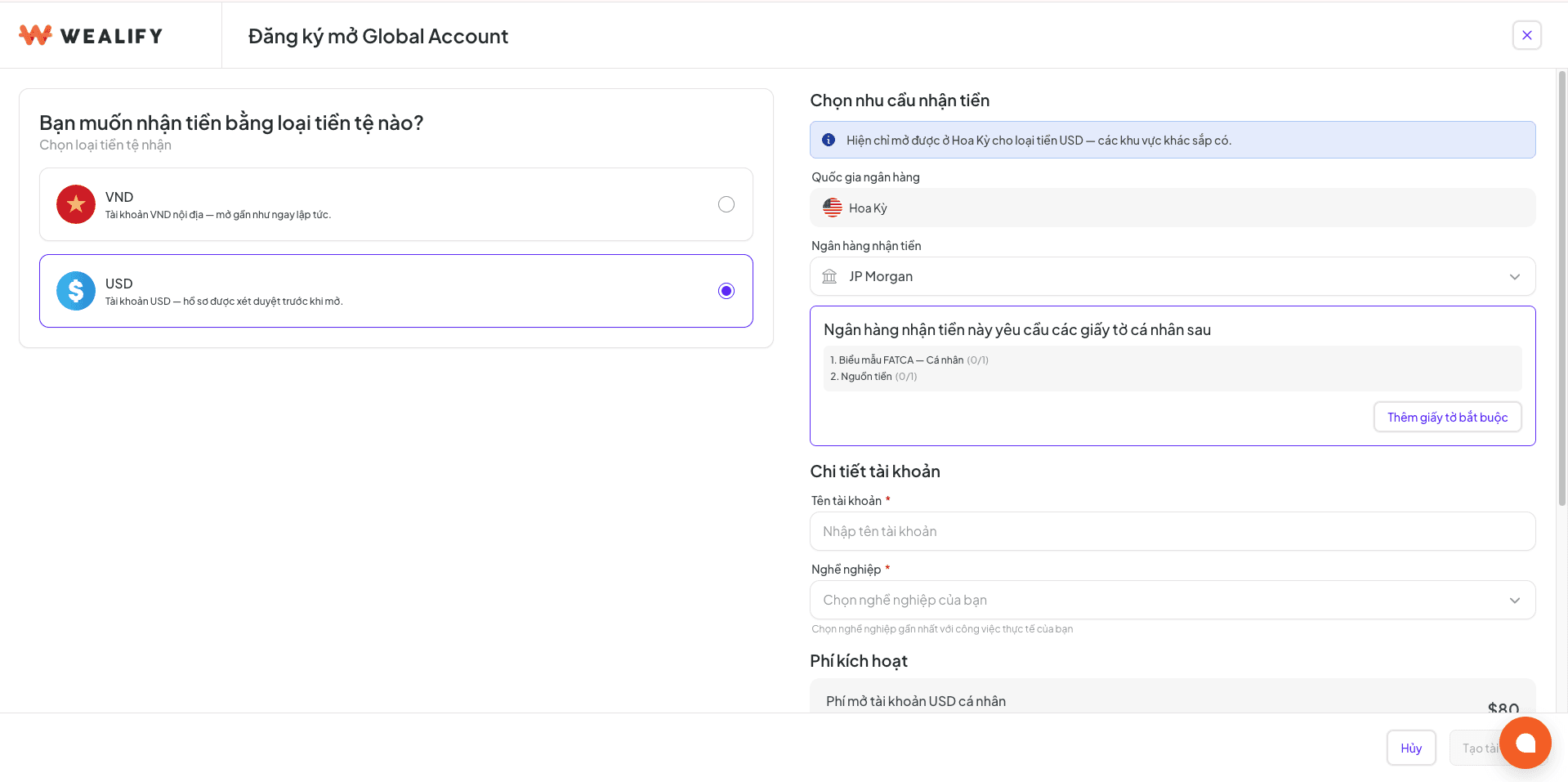
  2. Upload the documents into each field. You can give the account a nickname.
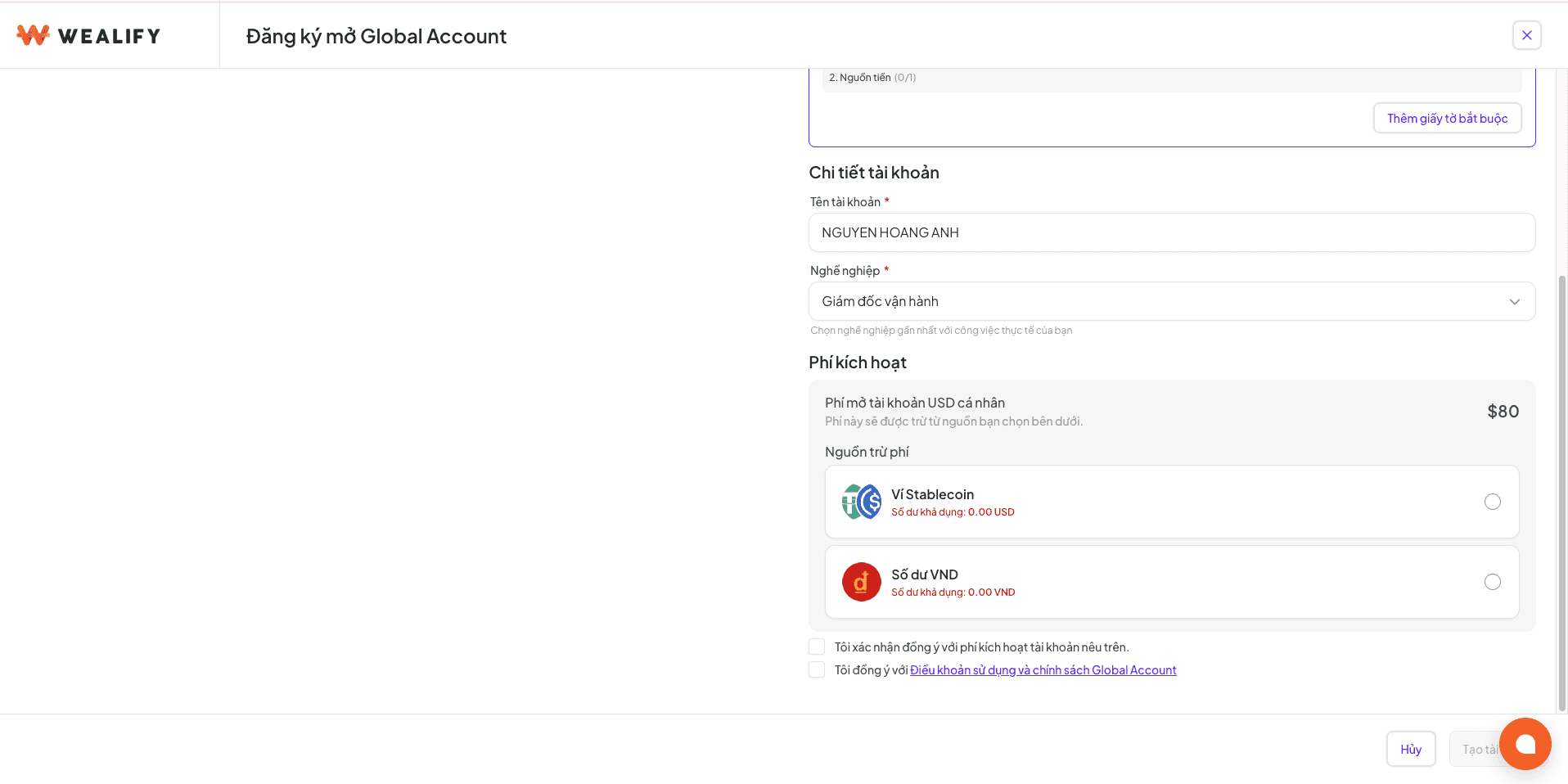
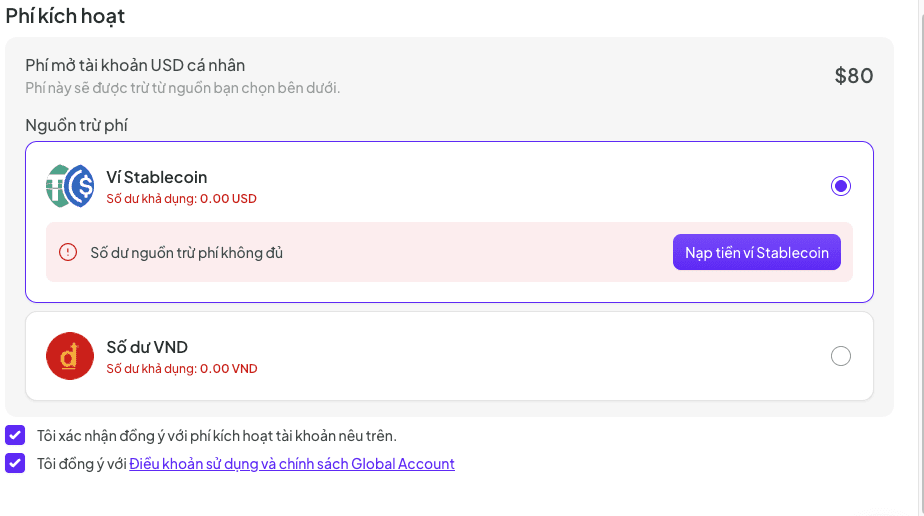
  3. On the confirmation screen, check the 80 USD account opening fee and choose where to pay it from (VND balance converted at the displayed rate, or the stablecoin wallet). Tick the confirmation, then choose Confirm.
  4. Wait for Compliance to approve your application (status Verifying application). The identity verification link doesn't arrive right after you pay: the system only emails the link once your application is approved. Open the link and follow the instructions: photograph your ID, take a live face photo and upload proof of address. It's best to do this on your phone. If you stop halfway, choose Resend link to continue.

  5. Track the status: Verifying application → Opening account → Active. When it's done, you'll receive the email "Your USD account is ready".

⚠️ ABOUT THE ACCOUNT OPENING FEE

  • The fee is charged as soon as you submit the application and only once. Submitting additional documents costs nothing extra.

  • If the application is permanently rejected, the fee is refunded to the same source it was taken from.

[Business] Create a Global Account USD

Requirement: the account is KYB approved. PDF / JPG files, up to 10 MB each. Items marked 📎 have a template you can download right in the upload field.

Business documents:

Document

Notes

Corporate Resolution

📎 signed and dated at the time you submit the application

Business FATCA form W-8BEN-E (non-US person) or W-9 (US person)

📎 signed and dated at the time you submit the application

Financial statements

If the company is new and has no reporting period yet, submit a Declaration of non-operating company 📎 and a Business declaration

Proof of the business's source of funds

One of: 3 months of bank statements; sales contracts, purchase orders, invoices or shipping documents; for new companies: an explanation of the source of funds, a business plan and evidence of financial support from shareholders

Proof of Address (company)

Electricity / water bill or bank statement showing the company address, from the last 3 months

Documents for each director and each owner with 25% or more (directors who own less than 25% must still submit):

Document

Notes

Individual FATCA form W-8BEN (non-US person) or W-9 (US person)

📎 signed and dated at the time you submit the application

Proof of personal source of funds

Each person's personal bank statements / employment contract / payslips, from the last 3 months

Photo of ID document

For the owner(s) with 25% or more

Steps:

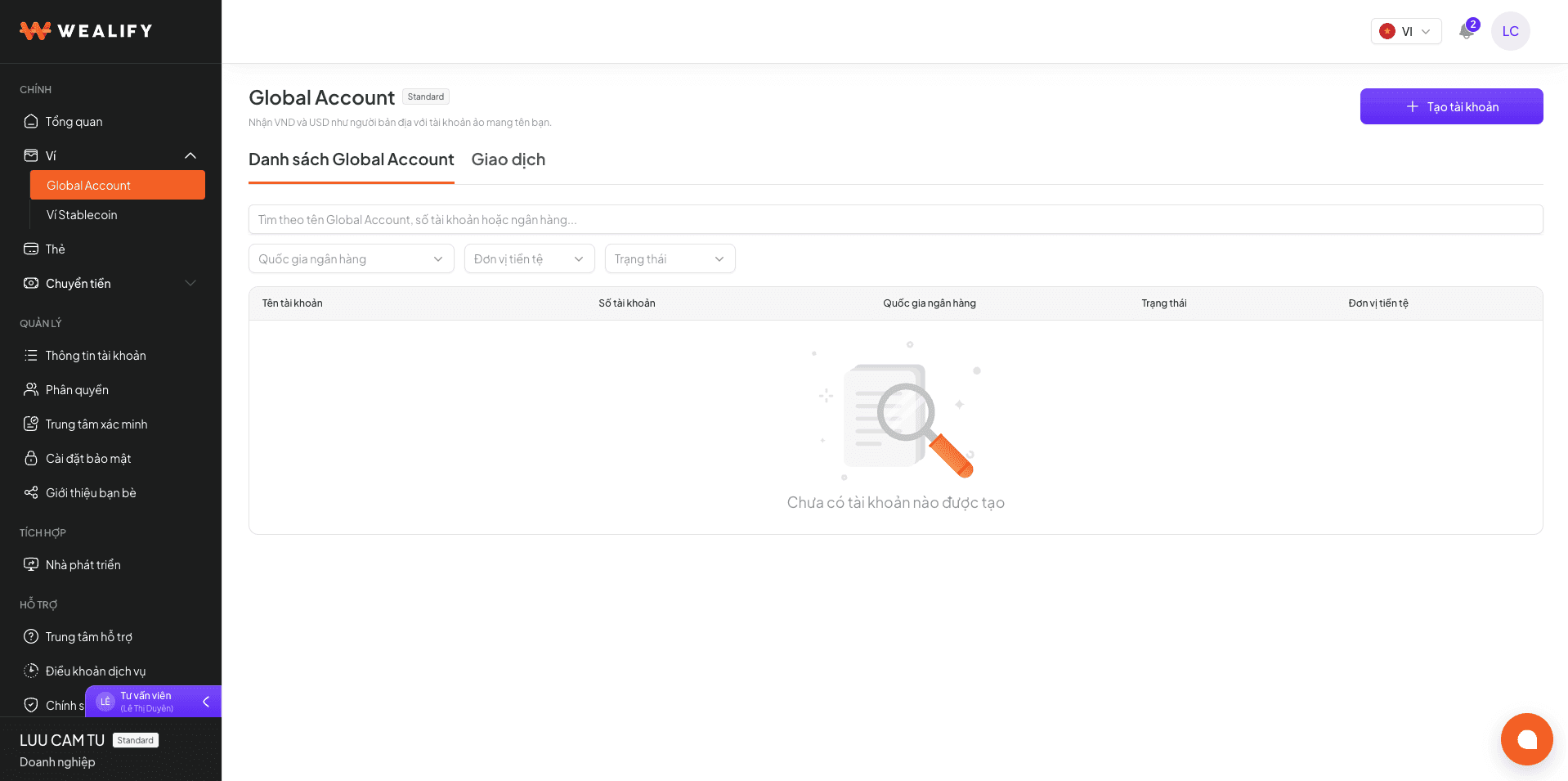
  1. Choose Wallet → Global Account → Create Global Account, choose the USD type and the bank JP Morgan, then choose Submit application.
  2. Upload all documents for both groups. The screen shows exactly which fields are missing and for whom.
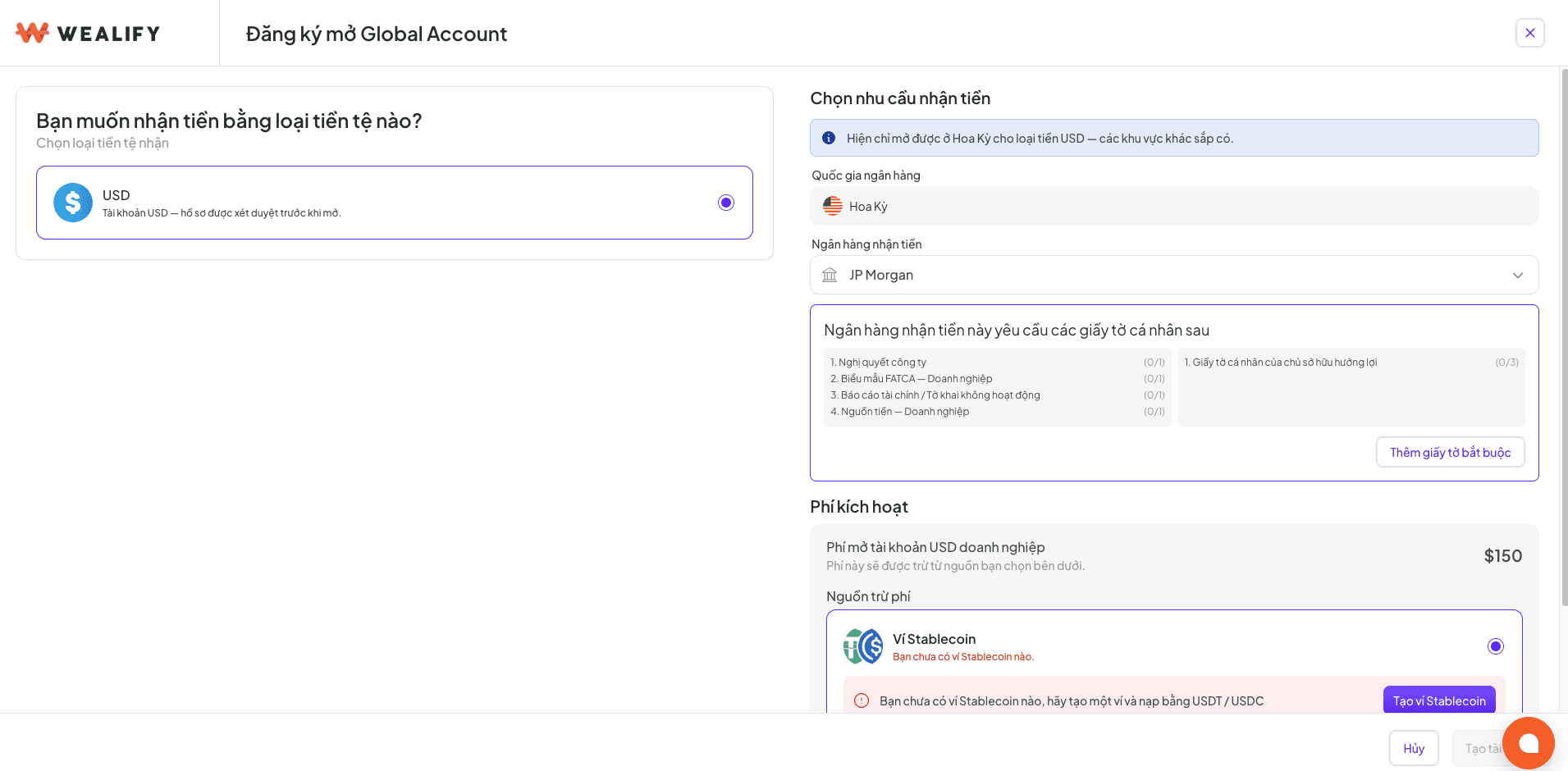
  3. On the confirmation screen, check the 150 USD account opening fee and where it will be paid from. Tick the confirmation, then choose Confirm. If your balance isn't enough, the screen takes you to top up and keeps the data you've entered.
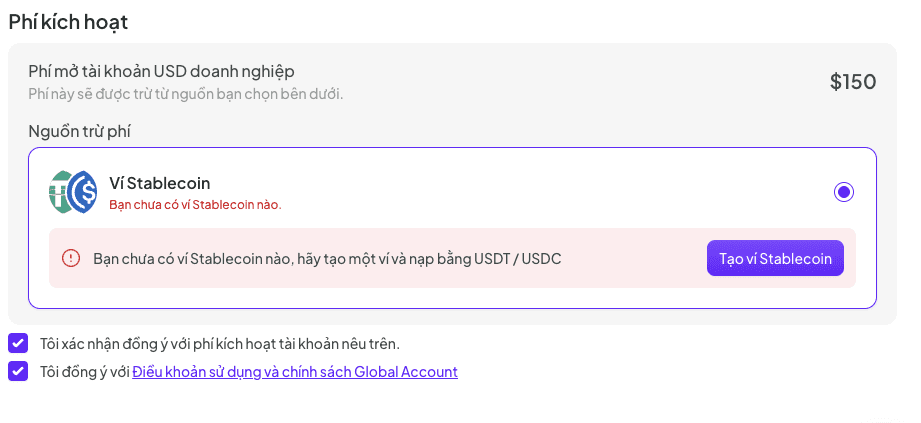
  4. Face verification: each director and each owner with 25% or more receives a separate email with a face verification link. Wait for Compliance to approve the application (status Verifying application). The face verification link doesn't arrive right after you pay: only once the application is approved does the system send each director and each owner with 25% or more a separate email with the face verification link. The link is valid for 24 hours. Each person opens the link on their phone and takes a live face photo. If the link expires, choose Resend in the app.

  5. Track the status: Verifying application → Opening account → Active. You'll receive the email "Your USD account is ready".

⚠️ NOTE

  • The application only moves forward once all directors and owners have completed face verification. Please remind everyone to do it early.

  • It's best to download the FATCA and Corporate Resolution templates and sign them before you start, so you can complete the application in one go.

Get your receiving details — ACH, Wire or SWIFT
The Receiving details section in your Global Account USD details has three tabs, one for each transfer method with its own set of details. Please send the payer exactly the details for the method they use.

Method

The payer uses it when

Details to send

Typical time

ACH

The payer has a US bank account and it isn't urgent. Most US marketplaces and payment gateways pay via ACH

Account name, account number, ACH routing number (9 digits), bank name and address

1 to 3 business days

Wire

The payer is in the US and needs the money to arrive quickly, or the amount is large

Account name, account number, Wire routing number, bank name and address

Within the business day

SWIFT

The payer is outside the US

Account name, account number, BIC / SWIFT code, bank name and address, possibly an intermediary bank

1 to 5 business days; intermediary banks may charge extra fees

⚠️ THE PAYER MUST USE THE EXACT ACCOUNT NAME

The USD account name is your legal name from your verification documents (the name on your ID or your company name), not the nickname you chose. A wrong name is the most common reason money is returned.

Accounts with the status Verifying application or Opening account show "–" in the account number lines.

Add your Global Account to Etsy and verify the bank

Step 1 — Add the details to Etsy: on Etsy, go to Shop Manager → Payment Settings. Under Bank details, fill in the information from your Global Account details screen on Wealify: Bank name from Bank name, Account Number from Account number, Swift BIC from SWIFT code.

Step 2 — Verify the bank on Etsy:

Option 1 — Verify with a small deposit:

  1. After you add the bank details and your shop gets its first order, Etsy sends a small deposit for verification. It usually reaches Wealify within 2 to 3 business days.

  2. On Wealify, choose Wallet → Global Account, open the account you added to Etsy, go to the Transactions tab and open the Deposit transaction from Etsy.

  3. Enter the amount Etsy sent (before fees) in the Verify account section on Etsy.

If Etsy couldn't send the small deposit, choose Try again on Etsy so Etsy sends it one last time.

Option 2 — Verify with a bank statement: the statement must have the bank's official letterhead, transactions from the last 6 months and full account details (including SWIFT / BIC).

Step 3 — Check the result: Etsy emails you the result within about 7 business days. If verification succeeds, Etsy pays out on the schedule you chose in Payment Settings. If it fails, Etsy may temporarily suspend your shop — please contact Wealify CS.

Receive money into Global Account USD

How long USD takes to arrive

The payer sends to your ACH / Wire / SWIFT details → the transaction shows the status Processing, and Wealify confirms it within about 2 business days → you receive the email "You've just received ... USD" and the money is added to the USD balance of your Wealify wallet. The receiving fee is shown as a separate line in your transaction history.

⚠️ NOTE

  • If the payment still isn't successful after the time above, please contact Wealify CS with the transaction ID.

Submit additional documents for a verification application

Wealify or the bank may ask for documents for an incoming payment. While you wait, the money from that payment isn't credited to your Wealify wallet yet.

Case

What you need to do

⚠️ Note:

USD transaction with the status "Awaiting documents" — Wealify may ask for documents for your first 1 to 3 incoming payments or during random checks

Open the request email, or go to the Verification Center and open the application for that transaction. Submit invoices, contracts or payout statements. The money is credited to your wallet once the documents are accepted

  • Each transaction has its own email.

  • If you can't respond by the deadline in the email, contact Wealify CS right away for help

Withdraw from Global Account USD

Add a bank account to receive USD

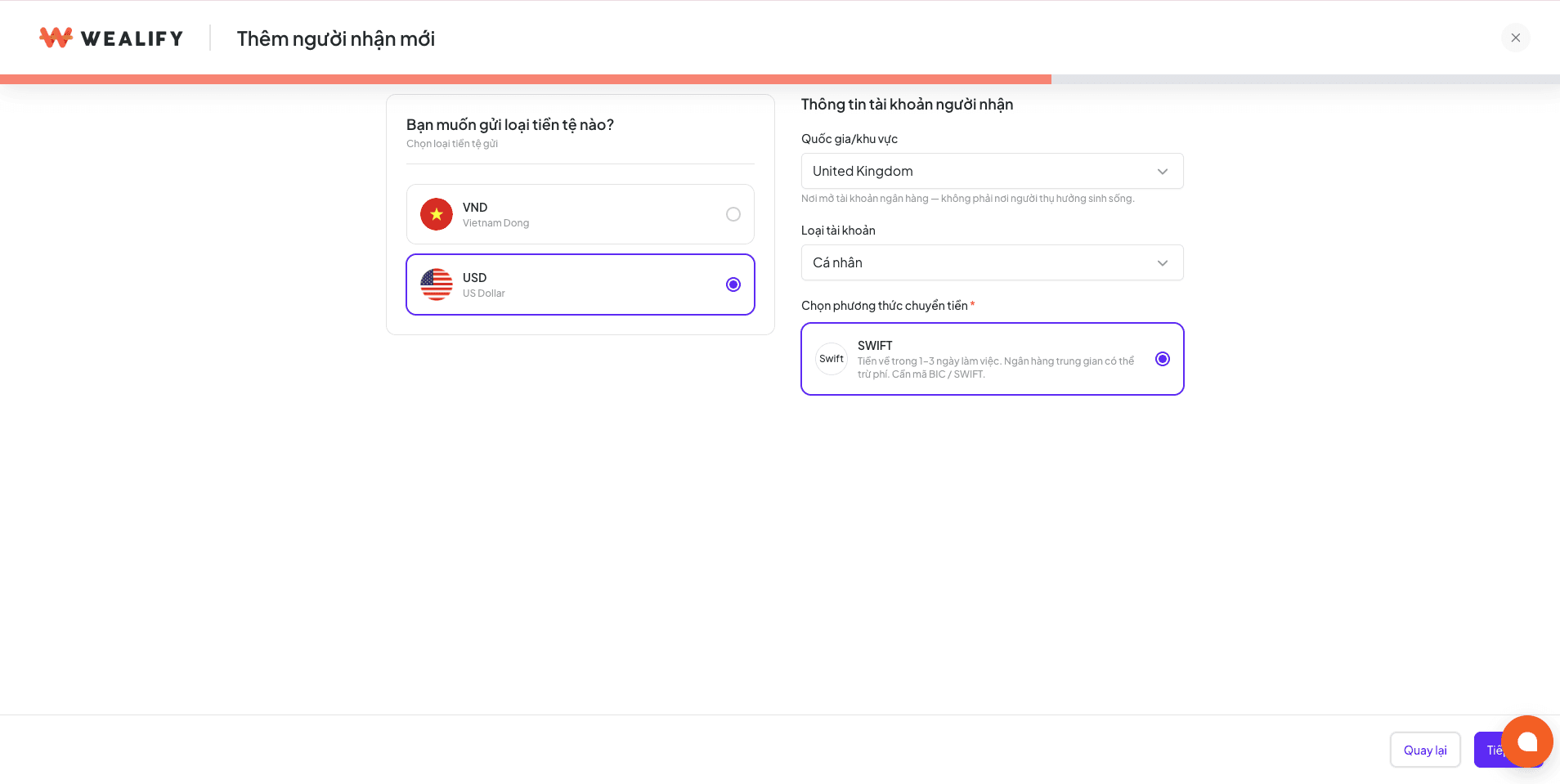
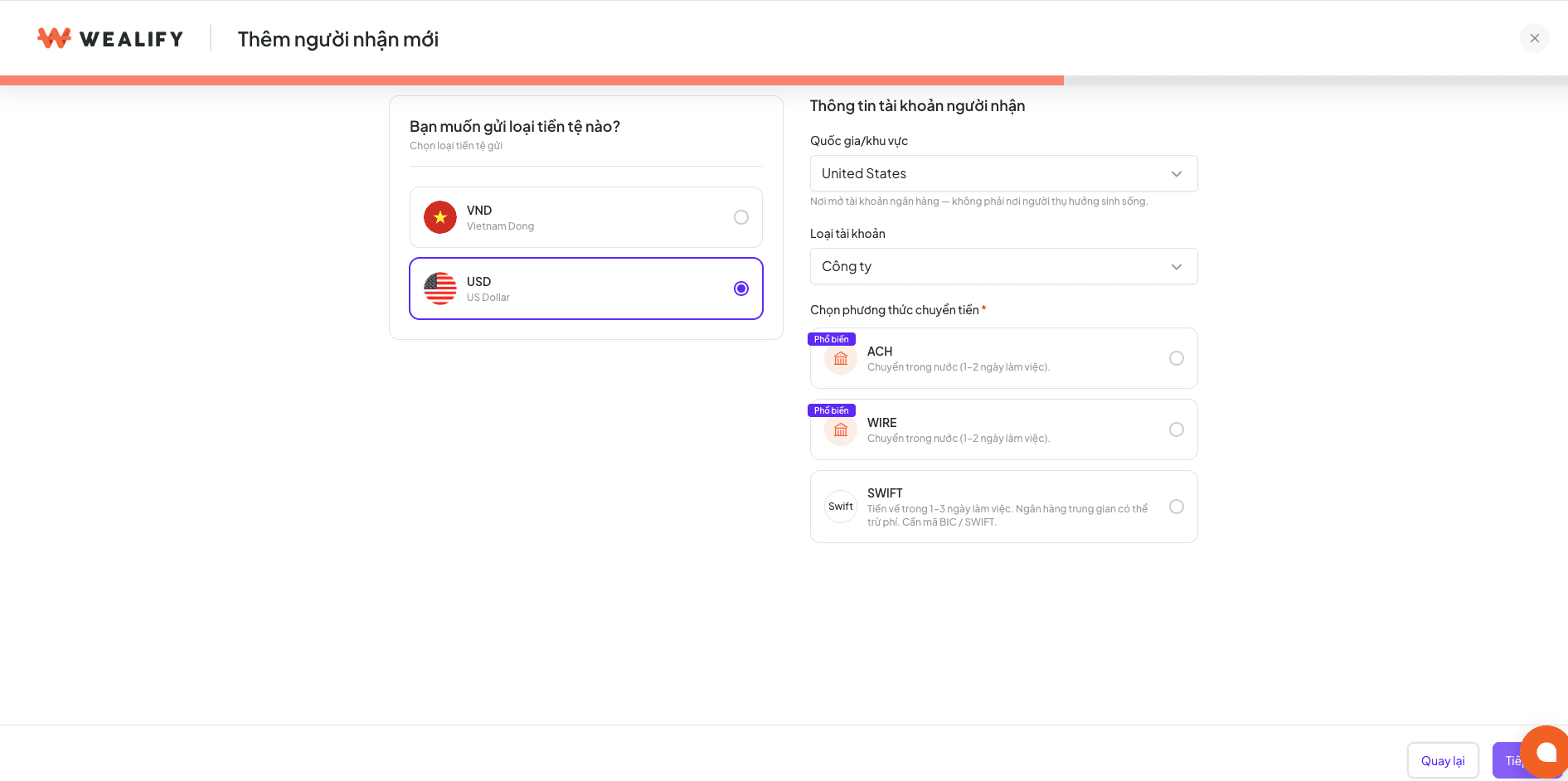
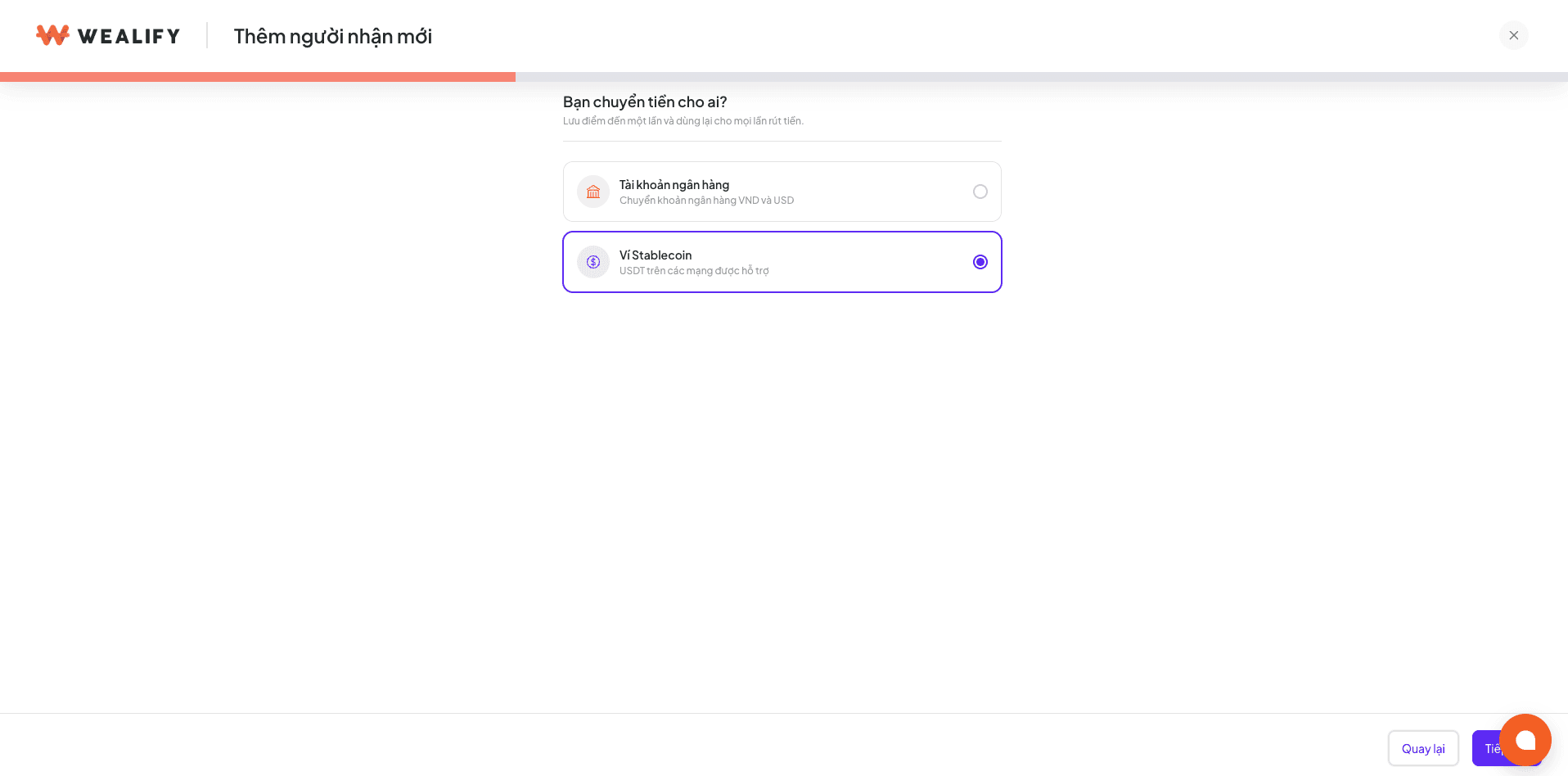
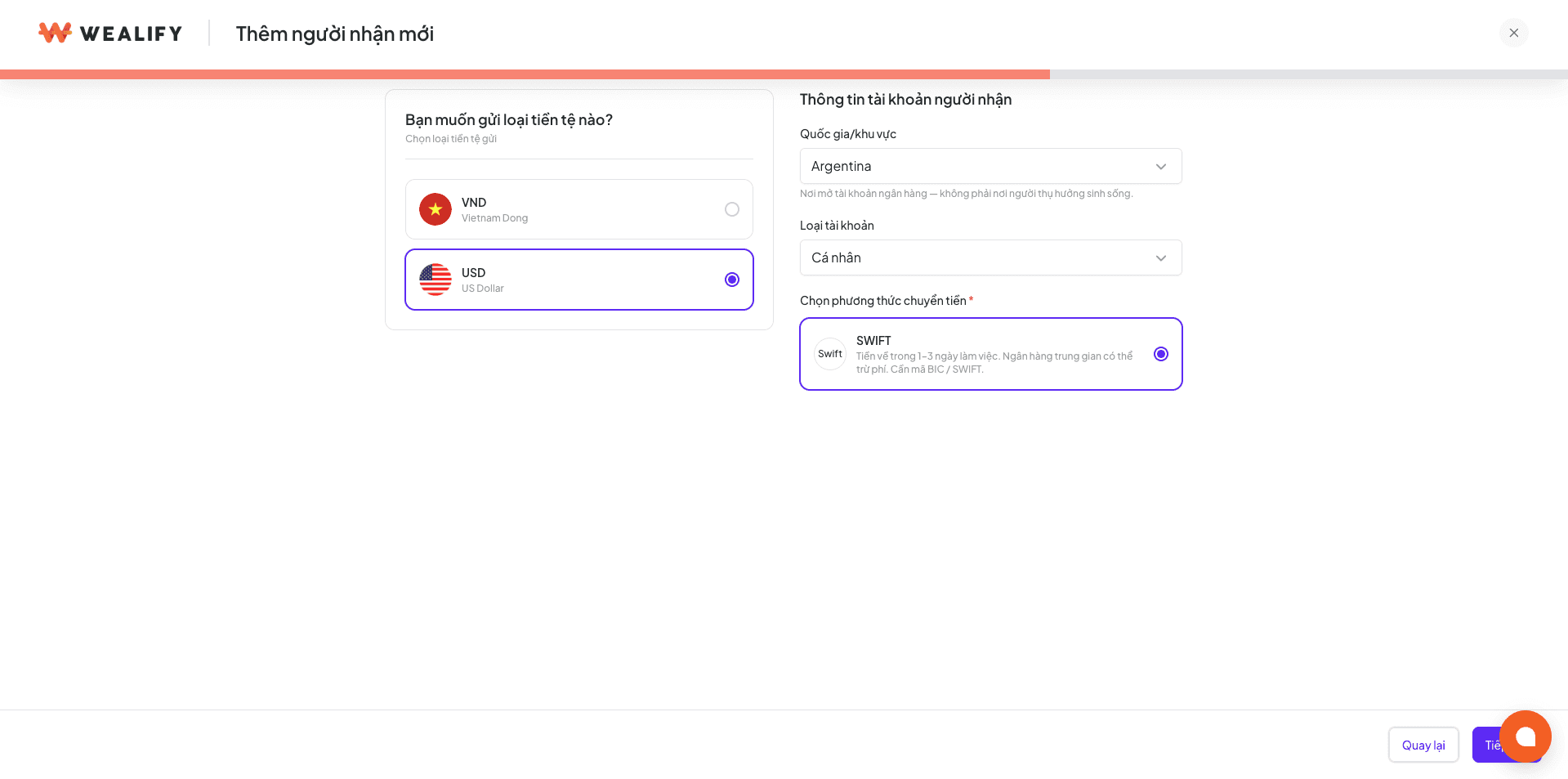
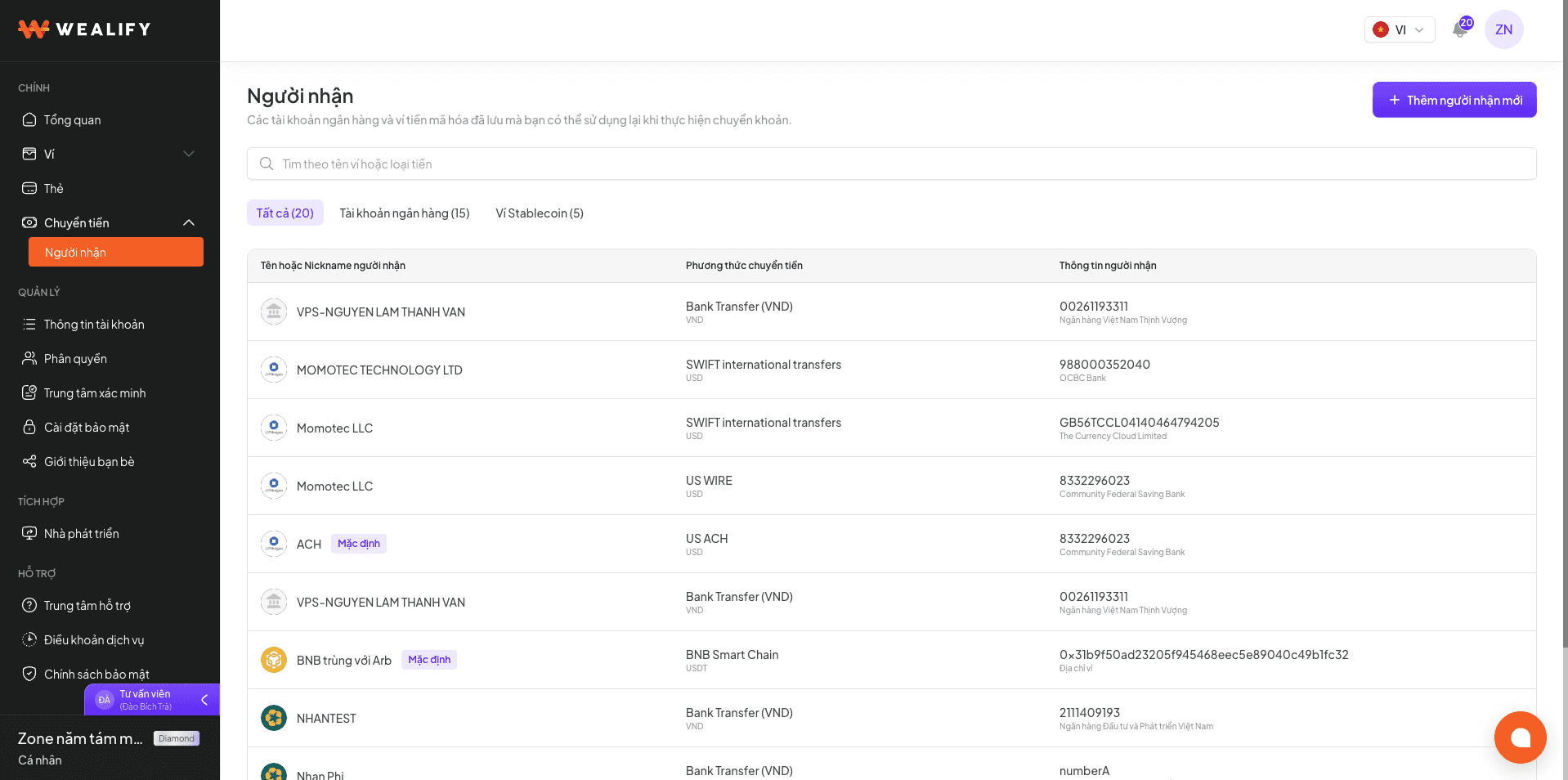
  1. Choose Transfer → Recipients → Add new recipient → Bank account → Continue.

  2. Choose the currency USD. Choose the Country / region where the recipient's bank account is held (not where the recipient lives). Choose the Account type: Individual or Company.

  3. Choose the transfer method:

    Recipient's bank is in

    Method

    Best when

    United States

    ACH — US domestic transfer, 1 to 2 business days

    Regular transfers that aren't urgent

    United States

    WIRE — US domestic transfer, usually same day

    The money needs to arrive the same day, or the amount is large

    United States

    SWIFT — international transfer

    The receiving bank requires SWIFT

    Other countries

    SWIFT (pre-selected)


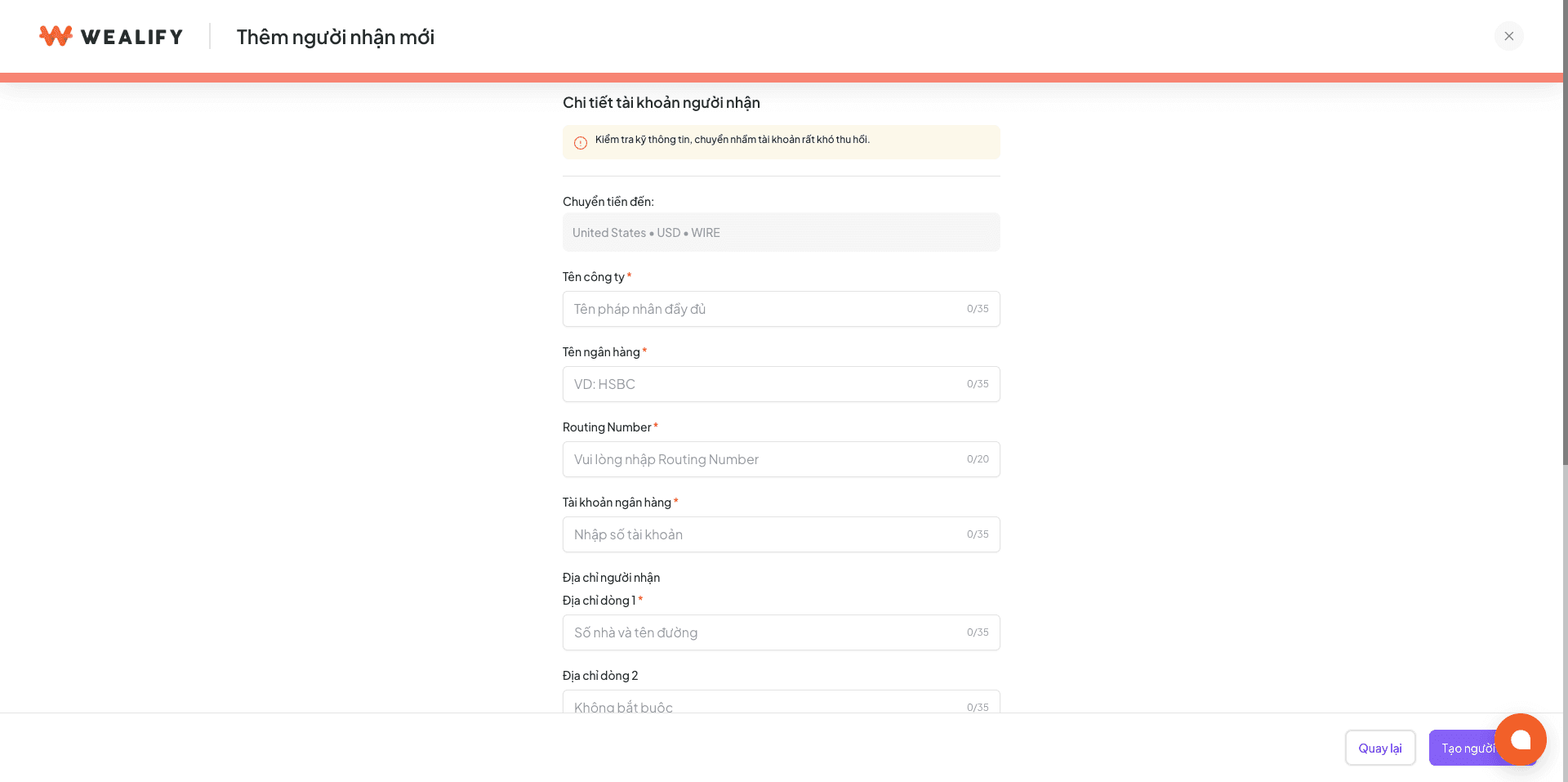
  4. Fill in the details for the method you chose:

    Field

    ACH / WIRE

    SWIFT

    Explanation

    Account holder / Company name

    Yes

    Yes

    The legal name exactly as registered at the receiving bank

    Bank name

    Yes

    Yes

    For example HSBC, Chase

    Bank routing number (ABA)

    Yes, 9 digits

    No

    US bank identifier, provided by the recipient

    BIC / SWIFT code

    No

    Yes, 8 or 11 characters

    International bank identifier

    Account number / IBAN

    Account number

    Account number or IBAN

    Some countries (UK, EU) use IBAN

    Recipient address

    Yes

    Yes

    The recipient's address, not the bank's address

    Intermediary bank

    No

    Optional

    Fill in if the receiving bank requires it

    Nickname, Note

    Optional

    Optional


  5. Choose Create recipient and enter the OTP if asked.

Tip: ask the recipient for their bank's "incoming wire instructions". This document has the full name, account number / IBAN, SWIFT or ABA code, and intermediary bank if any.

Transfer USD to a bank

Before creating an order, you need to save the USD bank account as described above. Steps:

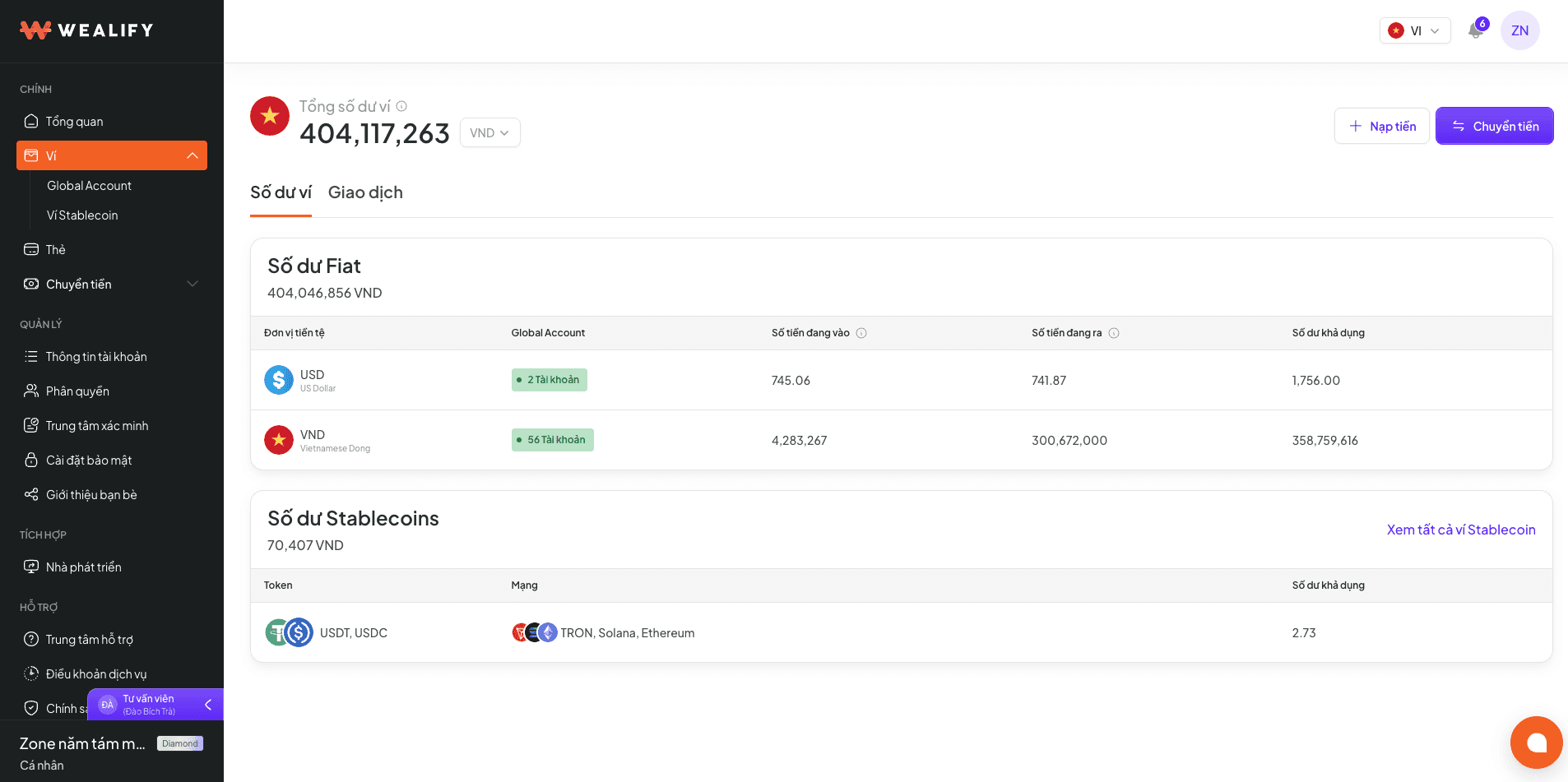
  1. Choose Transfer — on the Overview screen, the Wallet screen or the Transfer menu.

  2. Choose the recipient: open the Bank account tab and choose a saved USD bank account. ACH, WIRE or SWIFT is taken from that recipient's details; you don't choose it again at this step.

  3. Choose the Global Account USD to use as the reference for the order.

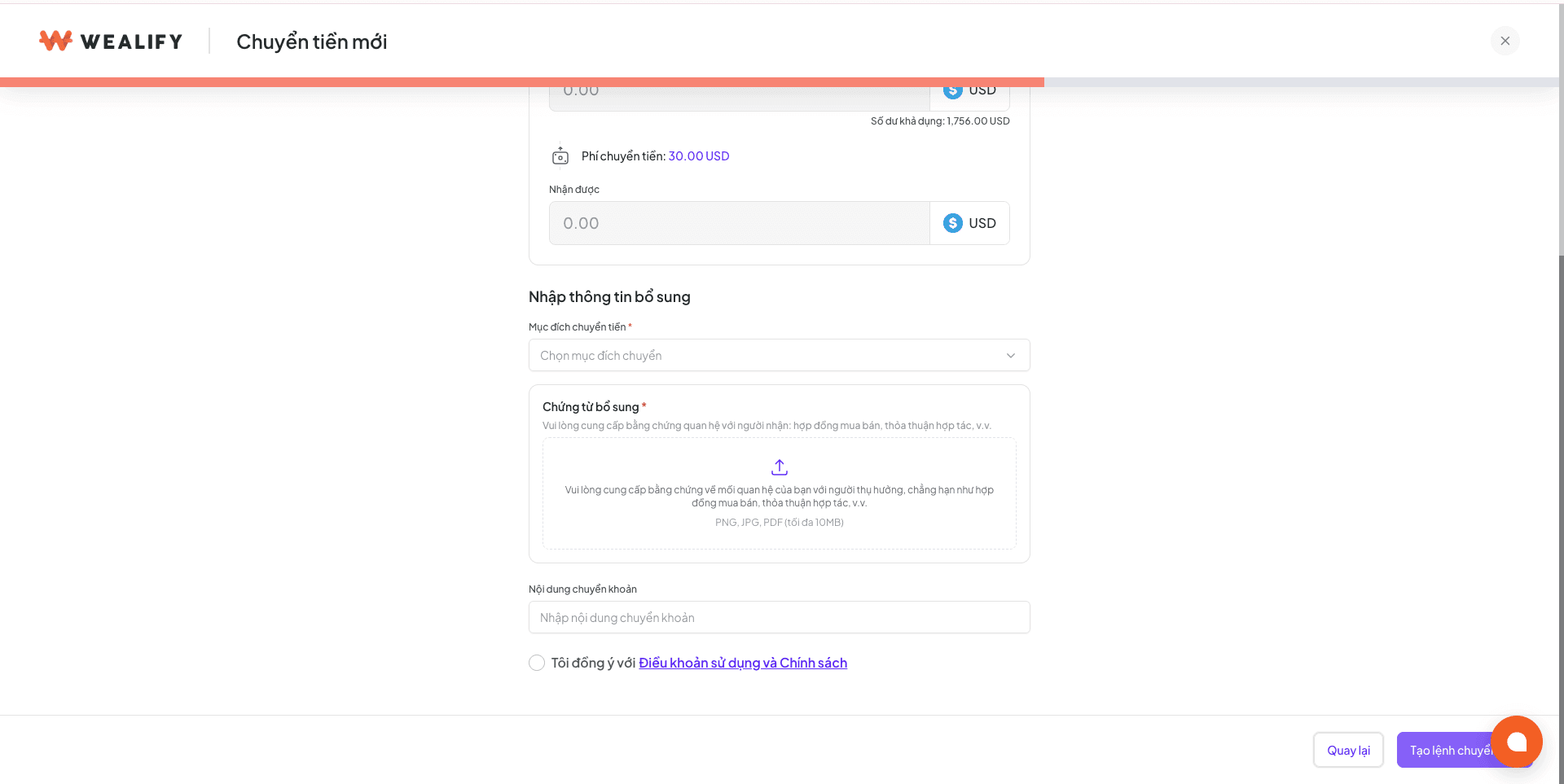
  4. Enter the amount in the You pay field. The screen shows the Transfer fee (ACH 20 USD · Wire 30 USD · SWIFT 30 USD per order, the same for all tiers) and the amount the recipient Receives.

  5. Choose the Transfer purpose from the list — for example payment for goods, payment for services, salary, advertising services.

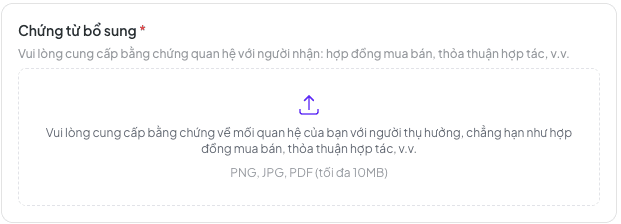
  6. Upload supporting documents. Every USD order requires documents: proof of your relationship with the recipient (a sales contract, a partnership agreement). If you're transferring to your own account, submit a screenshot of the bank account showing the account number and account holder name. PNG, JPG or PDF format, up to 10 MB.

  7. Tick I agree to the Terms of Use and Policy, then choose New transfer order.

  8. Enter the OTP code to confirm the order.

  9. The order appears in the Transfer list with the status Pending. The money usually reaches the recipient's account within 0 to 3 business days.

Item

Details

Method

ACH / WIRE / SWIFT is taken from the saved recipient's details

Source of funds

Choose the Global Account USD to use as the reference

Fee

ACH 20 USD · Wire 30 USD · SWIFT 30 USD per order, the same for all tiers

Documents

Required for every order: proof of your relationship with the recipient (a sales contract, a partnership agreement). If you're transferring to your own account, submit a screenshot of the bank account showing the account number and account holder name. PNG / JPG / PDF, up to 10 MB

Transfer purpose

Choose from the list, for example payment for goods, payment for services, salary, advertising services

Funds that can be transferred

All USD in your Wallet can be transferred in USD, including money received from senders with a different name

Time

Usually 0 to 3 business days. With SWIFT, intermediary banks may charge extra fees, so the amount the recipient actually receives may be slightly lower

⚠️ WHEN A USD ORDER FAILS AFTER BEING SENT

You'll receive two separate notifications. The notification "money is being refunded to your Wallet" means your balance hasn't been credited back yet. When you receive the notification "refunded to your Wallet", the full amount and fees are back in your available balance.

Transfer USDT to the stablecoin wallet

Before creating an order, you need to save a stablecoin wallet to receive USDT, as described in the article Add a stablecoin wallet to receive USDT in chapter 8. Steps:

  1. Choose Transfer — on the Overview screen, the Wallet screen or the Transfer menu.

  2. Choose the recipient: open the Stablecoin wallet tab and choose a saved wallet on the Tron, Solana or Ethereum network.

  3. Look at the Available to convert to USDT line on the screen. This is the part of your balance eligible for conversion to USDT, which may be less than your USD balance — only money from marketplaces, payment gateways and senders with the same name as the account holder can be converted to USDT.

  4. Enter the amount in the You pay field, no lower than the minimum for your tier: Standard 2,000 USD · Silver 2,500 USD · Gold 3,000 USD · Diamond 4,000 USD.

  5. Check the Transfer fee — a percentage based on your tier plus 20 USD per order (blockchain network fee included) — and the amount of USDT the recipient Receives. The rate is 1 USD = 1 USDT. This order doesn't need documents.

  6. Tick I agree to the Terms of Use and Policy, then choose New transfer order.

  7. Enter the OTP code to confirm the order.

  8. The order shows the status Pending. Once Wealify has processed it, the USDT arrives in the wallet the same day. The completion email includes the on-chain transaction ID (TxHash) so you can look it up.

Item

Details

Recipient

A saved stablecoin wallet on the Tron, Solana or Ethereum network

Rate

1 USD = 1 USDT

Amount that can be transferred

The screen shows Available to convert to USDT. Only money from marketplaces / payment gateways and from senders with the same name as the account holder can be converted to USDT, so this number may be less than your USD balance. Money received from B2B partners with a different name can only be transferred in USD

Fee

Transfer fee = a percentage based on your tier + 20 USD per order (blockchain network fee included). For details, see the article Global Account USD fees and limits at the end of chapter 7

Minimum per order

Standard 2,000 USD · Silver 2,500 USD · Gold 3,000 USD · Diamond 4,000 USD

Documents

Not required

Time

Once Wealify has processed it, the USDT arrives in the wallet the same day. The completion email includes the on-chain transaction ID (TxHash) so you can look it up

⚠️ NOTE

A USDT order may be rejected if part of the amount came from a sender whose name differs from the account holder. In that case the amount and fees are fully refunded to your Wealify wallet, and you can transfer this amount in USD instead.

Global Account USD fees and limits

Fee

Business

Personal

Open a Global Account USD (one-time)

150 USD

80 USD

Receiving into Global Account USD: percentage by tier

Standard 1.00% · Silver 0.80% · Gold 0.60% · Diamond 0.40%

Standard 1.10% · Silver 0.90% · Gold 0.70% · Diamond 0.50%

Receiving into Global Account USD: fixed fee by method

No charge — 0 USD for ACH · Wire · SWIFT

No charge — 0 USD for ACH · Wire · SWIFT

Close a Global Account USD (on request)

60 USD

40 USD

MT103 confirmation (copy of the international transfer message)

30 USD per order

30 USD per order

Bank confirmation letter (Bank Letter)

60 USD per letter

60 USD per letter

VRN

2 USD per order

2 USD per order

Transfer USD to a bank

ACH 20 USD · Wire 30 USD · SWIFT 30 USD per order, the same for all tiers

ACH 20 USD · Wire 30 USD · SWIFT 30 USD per order, the same for all tiers

USDT transfer: percentage by tier

Standard 0.70% · Silver 0.60% · Gold 0.50% · Diamond 0.40%

Standard 0.90% · Silver 0.80% · Gold 0.70% · Diamond 0.60%

USDT transfer: fixed fee

20 USD per order, blockchain network fee included

20 USD per order, blockchain network fee included

USDT transfer: minimum per order

Standard 2,000 · Silver 2,500 · Gold 3,000 · Diamond 4,000 USD

Standard 2,000 · Silver 2,500 · Gold 3,000 · Diamond 4,000 USD

Number of Global Accounts you can create

Standard, Silver and Gold have a limit; Diamond is unlimited

Standard, Silver and Gold have a limit; Diamond is unlimited

Example: a Standard-tier business receives 1,000 USD via ACH → fee = 1% × 1,000 = 10 USD → the Wallet receives 990 USD.

The receiving fee is exactly the tier percentage for any amount, with no fixed fee by method — small payments no longer carry a higher effective fee rate.

The three fees below only apply when you request them; the system doesn't charge them automatically:

  • MT103 confirmation — 30 USD per order. An MT103 is a copy of the transfer message the bank sends when it makes an international USD transfer. It shows the date and time, amount, sender name, recipient name and the order's reference number. Request it when you need proof of payment to send to a partner or supplier, or when the recipient says the money hasn't arrived and it needs to be traced with the bank. One copy per transfer order, 30 USD per copy.

  • Bank confirmation letter (Bank Letter) — 60 USD per letter. This is a document issued by the bank confirming that the account is in your name or your business's name, including the account holder name, account number and bank details. You need it when a platform, partner or auditor asks for an official document proving the receiving account really belongs to you before adding it to their system. Each letter costs 60 USD; you pay for as many letters as you need.

  • VRN — 2 USD per order. A reference number attached to an incoming payment, used to match each payment to its transaction.

To request an MT103 or a bank confirmation letter, contact Wealify CS with the transaction ID (for an MT103) or the Global Account number to be confirmed (for a bank confirmation letter).

Global Account VND vs Global Account USD

A Global Account is a bank account Wealify issues to you for receiving money. There are two types: Global Account VND (previously called VA — Virtual Account), a virtual Vietnamese bank account used to withdraw money from Wealify-approved platforms; and Global Account USD, a US bank account in your name or your business's name. You can open both types.


Global Account VND

Global Account USD

Bank

Vietnamese bank — BIDV, MSB, MB… depending on your account tier

US bank (currently JP Morgan)

Receives money from

13 eligible platforms. Each account only receives from one platform, chosen when you create it, and this can't be changed afterward

Ecom (e-commerce marketplaces, payment gateways) · Same name (senders with the same name as the account holder) · B2B (business partners)

How the payer sends money

The platform pays out to the account. Bank transfers are not accepted

ACH · Wire · SWIFT

How to open

Choose the bank and the receiving platform; you usually get the account number right away

Submit an application and verify your face; the bank opens the account within a few days

Requirements

Personal: KYC approved · Business: KYB approved

Personal: KYC approved · Business: KYB approved. Also submit an account opening application (FATCA form, proof of source of funds…), complete face verification and pay the account opening fee

Global Account USD FAQ

Question

Answer

How many Global Accounts can I open?

Depends on your account tier; Diamond is unlimited. The limit counts Global Account VND and USD together (see the table in article 6.5.1). The number you've created and your current limit are shown in Created x/y Global Accounts in Wallet → Global Account

The payer asks for a routing number or SWIFT?

Payers in the US use the ACH routing number (for ACH transfers) or the Wire routing number (for Wire transfers). Payers outside the US use the BIC / SWIFT code. Please send the matching tab from your Global Account USD details

Why isn't my Global Account USD name the nickname I set?

The USD account name is your legal name from your verification documents. Payers must use this exact name so the money isn't returned

What is the fee for receiving money into Global Account USD?

Only a percentage based on your tier — there is no fixed fee by ACH / Wire / SWIFT method. See the article Global Account USD fees and limits at the end of chapter 7

The marketplace says it has paid, but the money isn't in my Wallet?

Check the Transactions tab of the Global Account. Processing means it's being reconciled, usually within 2 business days. Awaiting documents means you need to submit documents — see the article Submit additional documents for a verification application (section 7.4.2). If the money still hasn't arrived after this time, please contact Wealify CS with the transaction ID

Can I convert my USD balance to USDT to top up a card?

Yes, but only for money from marketplaces / payment gateways or from senders with the same name as the account holder. See the article Transfer USDT to the stablecoin wallet